
Key takeaways
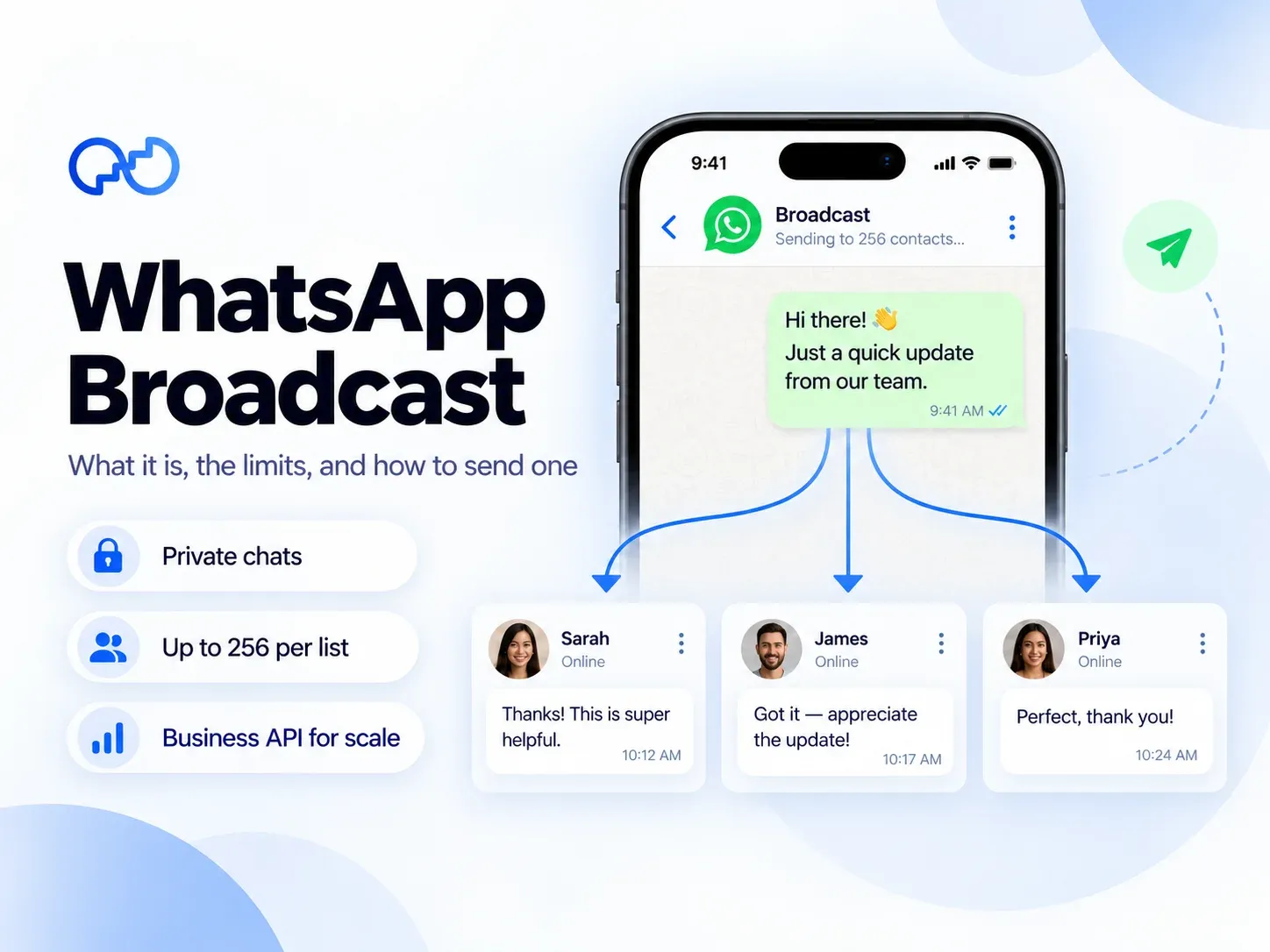
- A WhatsApp broadcast sends one message to many people at once, and each person gets it as a private chat. Nobody sees who else got it, and replies come only to you.
- On the regular WhatsApp and WhatsApp Business apps, a broadcast list holds up to 256 contacts. Only people who've saved your number will receive your message.
- WhatsApp is adding monthly broadcast limits in some countries, including India. In the Business app, you get a free monthly allowance of business broadcasts (many businesses report around 35 messages), and then you buy credits.
- To message more people, or people who haven't saved your number, you need the official WhatsApp Business API. There's no 256 cap, but customers must agree to hear from you, your first message has to be an approved template, and Meta charges a small fee per message.
- A broadcast is private and one-to-one. A WhatsApp group puts up to 1,024 people in one shared chat, where everyone can see everyone's messages and numbers.
- Steps AI connects your WhatsApp to the Business API and sends every reply to your campaign straight to an AI agent, which answers questions, recommends products, and takes orders right in the chat.
Sending the same message to 50 customers one by one gets old fast. A WhatsApp broadcast fixes that. You write one message, pick your contacts, and everyone gets it as a private chat from you.
The catch is that the rules have changed a lot over the past year. WhatsApp is rolling out caps on free broadcasts in more than a dozen countries, including India.
Here's how WhatsApp broadcasts work today and what they cost. We'll also walk you through exactly how we send broadcast campaigns in Steps AI, step by step, so you can see what sending at scale really looks like.
What is a WhatsApp broadcast?
A WhatsApp broadcast is one message sent to multiple recipients at the same time, where each person receives it as a normal individual chat from you. The saved group of people you send it to is called a broadcast list.
Here's what it looks like on the other side. Your customer sees your message in their usual chat with you, just as if you'd typed it only for them. They can't see who else got it, and there's no group for them to leave.
That's why "broadcast group in WhatsApp" is a bit of a misleading name, even though lots of people use it. A broadcast feels one-to-one, even though you sent it to hundreds of people.
When someone replies, their reply comes back to you as a private message. Nobody else on the list sees it.
This makes broadcasts a good fit for messages like these:
- A product launch or a restock
- A festive sale or a discount code
- New shop timings, a holiday closure, or a new phone number
- Early access to a new collection for your repeat buyers
Broadcasts also support rich media, so you can send photos, videos, documents, and voice notes as well as text. A broadcast can carry a catalogue photo or a price list PDF just as easily as a quick note.
WhatsApp broadcast vs group vs channel: What's the difference?
WhatsApp gives you three ways to reach lots of people inside the app, plus a fourth for businesses: the WhatsApp Business API. They're easy to mix up, and the key difference is who can see what.
| Broadcast list | Group | Channel | Business API | |
|---|---|---|---|---|
| How people get it | As a private chat from you | In one shared group chat | In their Updates tab, if they follow you | As a private chat from you |
| How many people | Up to 256 per list | Up to 1,024 members | Unlimited followers | 250 a day to start, rising to unlimited |
| Can they see each other? | No | Yes, including names, numbers, and messages | No | No |
| Can they reply? | Yes, privately to you | Yes, to the whole group | Only with emoji reactions and poll votes | Yes, and your team or an AI agent can answer, depending on your tool |
| Must they save your number? | Yes | No, you add or invite them | No, they choose to follow | No, but they must opt in |
| Personalisation | Same message for everyone | None | None | Name, order details, and more for each person |
| Results you can see | Ticks per person | None | Follower count and reactions | Sent, delivered, read, clicked, and failed |
| Cost | Free, with monthly caps in some countries | Free | Free | A small Meta fee per message |
| Best for | Small updates to people who know you | Discussion and teamwork | Public announcements | Marketing and updates at scale |
Use a group when you want people to talk to each other, like a team chat or a community of regular buyers. Groups are great for real-time discussion, but every member sees all the group messages and every phone number. Most customers won't love that.
Use a channel when you want to post public updates to anyone who chooses to follow you, without collecting phone numbers.
Use a broadcast when you want to send updates and offers privately. For customer communication, a broadcast is usually the right choice, because it protects people's privacy and keeps every conversation one-to-one.
And when your list grows past a few hundred people, or your customers haven't saved your number, the Business API becomes the better way to reach customers. We'll cover how it works further down.
How to create a broadcast list on WhatsApp
Creating a WhatsApp broadcast list takes less than a minute. Before you start, keep two things in mind:
- You need WhatsApp on your phone. According to WhatsApp, broadcast lists don't work on WhatsApp Web or the desktop apps for Windows and Mac.
- Only people who've saved your number in their phone's address book will receive your messages.
Menu names move around a little between app versions, but these steps match how most people's apps look today.
On Android
- Open WhatsApp and go to the Chats tab.
- Tap the three dots in the top right corner.
- Tap New broadcast.
- Select the contacts you want to add, up to 256.
- Tap the green tick to create your list.
On iPhone
- Open WhatsApp and go to the Chats tab.
- Tap Broadcast Lists. On newer versions, you'll find it in the three-dot menu at the top of the chats screen.
- Tap New List.
- Select your contacts.
- Tap Create.
On the WhatsApp Business app
The steps are the same as above. The Business app adds one handy shortcut, which is labels. If you've tagged customers with labels like "New customer" or "Paid," you can open a label and send broadcast messages to everyone in it.
In countries where WhatsApp has rolled out its newer business broadcasts, you'll also see a broadcasts option in the app's business tools. It shows how many free broadcast messages you have left this month.
Editing a broadcast list
To edit a broadcast list, open it and tap its name to see the broadcast list info. From there, you can add or remove contacts, rename the list, or delete it.
You can create as many lists as you like. Name each list after who's in it, like "Repeat buyers" or "Delhi customers," so you never send the wrong offer to the wrong people.
How to send a broadcast message on WhatsApp
Once your list is ready, sending a broadcast message works just like sending a normal chat.
- Open your broadcast list. After your first message, it shows up as a chat in your Chats tab.
- Type your message, or attach a photo, video, or document.
- Tap send.
Each recipient receives it as a private message from you. To see who has received and read it, press and hold your message in the broadcast chat and tap Info.
Sending a broadcast message on WhatsApp Business works the same way. The only difference is that in some countries, each business broadcast now counts toward a free monthly allowance. We'll cover that in the next section.
Keep each broadcast short, personal, and focused on one thing you want the reader to do.
If you just want to send a WhatsApp message to multiple contacts without a broadcast, you have two other options. You can forward a message to up to five chats at a time, or you can create a group. Forwarding works fine for a handful of people. A group only makes sense if everyone's happy to see each other's numbers.
What are WhatsApp broadcast limits in 2026?
The WhatsApp broadcast limit depends on which version of WhatsApp you use. This is where most people go wrong, because WhatsApp has been adding monthly caps since 2025.
| Regular WhatsApp app | WhatsApp Business app | WhatsApp Business API | |
|---|---|---|---|
| Contacts per broadcast list | 256 | 256 | No list limit |
| Must people save your number? | Yes | Yes | No, but they must opt in |
| Monthly limit | Being added in some countries | Free allowance, then paid credits | None |
| Daily limit | None published | None published | Starts at 250 customers a day and grows to unlimited |
| Cost | Free | Free up to your allowance | A fee per message, set by Meta |
Limits on the regular WhatsApp app
Each broadcast list holds up to 256 contacts, and you can make as many lists as you want.
WhatsApp's own help page now says that people in some countries might see a monthly broadcast limit. During testing, reports put it at around 30 broadcasts a month, and the app shows a counter so you know where you stand. WhatsApp has expanded this test to more than a dozen countries, including India.
Limits on the WhatsApp Business app
The WhatsApp Business broadcast limit is still 256 contacts per list. What's new is that business broadcasts are moving to a credit system.
Where it's live, you get a set number of free broadcast messages each month. Once you use them up, you buy credits to keep sending until your allowance resets. The free amount varies by country, and many businesses report around 35. Some new users have also been offered 250 free messages a month for their first six months.
Check your own app for your exact numbers, because WhatsApp sets them by country and is still rolling the change out.
Limits on the WhatsApp Business API
The official WhatsApp Business API doesn't use broadcast lists, so there's no 256 cap and no monthly cap. Instead, Meta limits how many different customers you can start conversations with in a rolling 24 hours.
Here's how the tiers work, straight from Meta's rules:
| Messaging limit | How you get there |
|---|---|
| 250 customers a day | Where every new business starts |
| 2,000 customers a day | Verify your business with Meta, or deliver 2,000 good-quality messages to different customers within 30 days |
| 10,000 customers a day | Automatic, once you keep quality high and use at least half your limit in a week |
| 100,000 customers a day | Automatic, same rules |
| Unlimited | Automatic, same rules |
Each step up happens within about six hours of meeting the rules. Two details catch people out:
First, the limit is shared across your whole Meta business portfolio, so adding a second phone number doesn't double it.
Second, replies to customers who message you first don't count toward it.
How to increase your broadcast limit
In the regular app, you can't raise the limits. You can only work within them by splitting customers across lists and sending messages less often.
In the Business app, you can buy credits once your free monthly allowance runs out.
If you need to reach thousands of customers, the real answer is the WhatsApp Business API. Verifying your business takes you straight to 2,000 customers a day. After that, message only people who've opted in, send regularly enough to use at least half your limit, and keep your quality rating high by avoiding messages people block or report.
Is WhatsApp broadcast free?
It depends on which version you use. The apps are free up to a point, and the Business API charges per message.
What the WhatsApp and WhatsApp Business apps charge
Broadcasts from the regular WhatsApp app are free, within the limits above.
The WhatsApp Business app used to offer free, unlimited broadcasts. Now, in countries where business broadcasts have rolled out, your monthly allowance is free, and anything past it needs paid credits. WhatsApp shows the price inside the app, and it varies by country.
What Meta charges on the Business API
On the WhatsApp Business API, Meta charges for each delivered message, based on the type of message. This per-message pricing started on 1 July 2025.
- Marketing messages, like offers, launches, and sale reminders, cost the most.
- Utility messages, like order updates and delivery alerts, cost less. They're free if you send them while a customer service window is open.
- Authentication messages, like one-time passwords, have their own rate.
- Replies to customers who message you are free within 24 hours of their last message.
Rates depend on your customer's country, and Meta publishes them on its pricing page. If you use a provider, you'll also pay for their plan.
You can pay Meta's fees with your own card, added to your WhatsApp Business account in Meta, or through us if you use Steps AI. Steps AI also shows you the estimated WhatsApp cost of each campaign before you send it, so the bill never catches you off guard.
Why your WhatsApp broadcast doesn't reach everyone
If some people say they never got your broadcast, the cause is almost always one of these:
- They haven't saved your number. This is the big one. On the regular and Business apps, your message only reaches people who have your number saved in their address book.
- They've blocked you.
- You've hit your monthly limit, if your country has one.
- The number in your contact list is wrong, or the person isn't on WhatsApp.
If your delivery rate looks low, here's how to check. Look at the ticks under your message in the broadcast chat. One grey tick means it was sent but not delivered, which usually means that person hasn't saved your number. Two grey ticks mean delivered, and two blue ticks mean read.
On the free apps, the only fix for an unsaved number is to ask the person to save it. That's easy with 20 regulars. It doesn't work for 2,000 customers who bought from your website once and never saved anything.
How to broadcast to people who haven't saved your number
To send a WhatsApp broadcast without people saving your number, you need the official WhatsApp Business API. It's the only approved way to send bulk WhatsApp messages to customers who haven't saved you.
Be careful with apps and Chrome extensions that promise to blast messages from your normal WhatsApp. They break WhatsApp's rules, and they're one of the quickest ways to get your number banned.
The API works differently from the app in three ways:
- Customers have to opt in. Before you message someone, they need to have agreed to receive messages from you on WhatsApp. You can ask at checkout, in your website chat, through a click-to-WhatsApp ad, or when a customer messages you first.
- Your first message must be an approved template. When you start a conversation, or message someone more than 24 hours after they last wrote to you, you need a WhatsApp message template that Meta has approved. Inside that 24-hour window, you can reply however you like.
- You get proper delivery reports. You can see how many messages were sent, delivered, and read, and the free apps barely show any of that.
In return, you get no 256 cap, no saved-number rule, and clear results for every campaign.
WhatsApp Business app vs Business API for broadcasts
Both let you send broadcasts, but they're built for very different stages of a business. One thing to know first: you don't use the Business API on its own. You use it through a provider's app, so a few features below, like scheduling and audience tools, depend on which tool you choose. Here's how they compare side by side:
| WhatsApp Business app | WhatsApp Business API | |
|---|---|---|
| Who it suits | Small shops sending to people they know | Growing stores sending to hundreds or thousands |
| People per send | 256 per list | 250 a day to start, rising to unlimited |
| Saved number needed | Yes | No, opt-in instead |
| Message format | Anything you type | Approved templates to start a conversation |
| Personalisation | None | Name, order details, and more for each person |
| Audience | Contacts and labels you pick by hand | CSV uploads, Shopify segments, and lists |
| Scheduling | Not widely available | Yes |
| Results | Ticks per person | Delivered, read, clicked, and failed per campaign |
| Cost | Free allowance, then credits | Meta fee per message, plus your provider's plan |
WhatsApp Business app is enough if
- You have a small, local customer base, and most people already have your number saved
- You send a handful of updates a month
- You're happy to answer every reply yourself
- You're still testing whether WhatsApp works for your business
WhatsApp Business API is the right move if
- You want to reach more than 256 people at once
- Many of your customers bought online and never saved your number
- You want each message to include the customer's name or order details
- You need to see what each campaign delivered, read, and sold
- You get more replies than you can answer by hand
If two or more points in the second list sound like you, you've probably outgrown the free app.
There's one difference that matters more than anything in that table, and it's about what happens after you hit send.
What happens when customers reply to your broadcast
A good broadcast gets replies. Most people don't plan for them, and that's where a campaign makes or loses money.
Picture your Diwali sale going out to 1,000 customers. Within minutes, someone asks, "Is this available in XL?" Someone else asks, "How many days for delivery to Pune?" A third wants to know if they can pay cash on delivery.
With the free app, every reply lands on your phone as a separate chat. If 300 people reply in an hour, you're answering 300 chats by hand, unless something can automate the replies and route each conversation for you. The ones you don't get to in time usually buy somewhere else, right when they were most interested.
A broadcast should start a conversation, not end one.
That's the gap we built Steps AI to close. Sending is only half the job. With Steps AI, every reply to your campaign goes straight to your AI agent. The agent is trained on your store, so unlike a basic chatbot, it can:
- Answer product questions about sizes, colours, and stock from your catalogue
- Look up order status and quote shipping costs
- Show product cards, add items to the cart and share a checkout link, all inside the chat
- Pass the conversation to your team, with the full chat history, whenever a person is needed
Every conversation sits in one shared inbox, next to your Instagram, Messenger, and website chats.
How to send WhatsApp broadcasts with Steps AI, step by step
Here's exactly how a broadcast campaign works in Steps AI, from your first click to seeing who read your message. Apart from verifying your business with Meta, everything happens inside the app, and you won't need a developer at any point.
Before you start: verify your business with Meta
Every new business starts with a limit of 250 customers a day. Verifying your business in Meta Business Suite lifts that to 2,000, and good-quality campaigns raise it automatically from there. This happens in Meta, not in Steps AI, so if you're planning a big festive send, do it well ahead of time.
Step 1: Start a new campaign
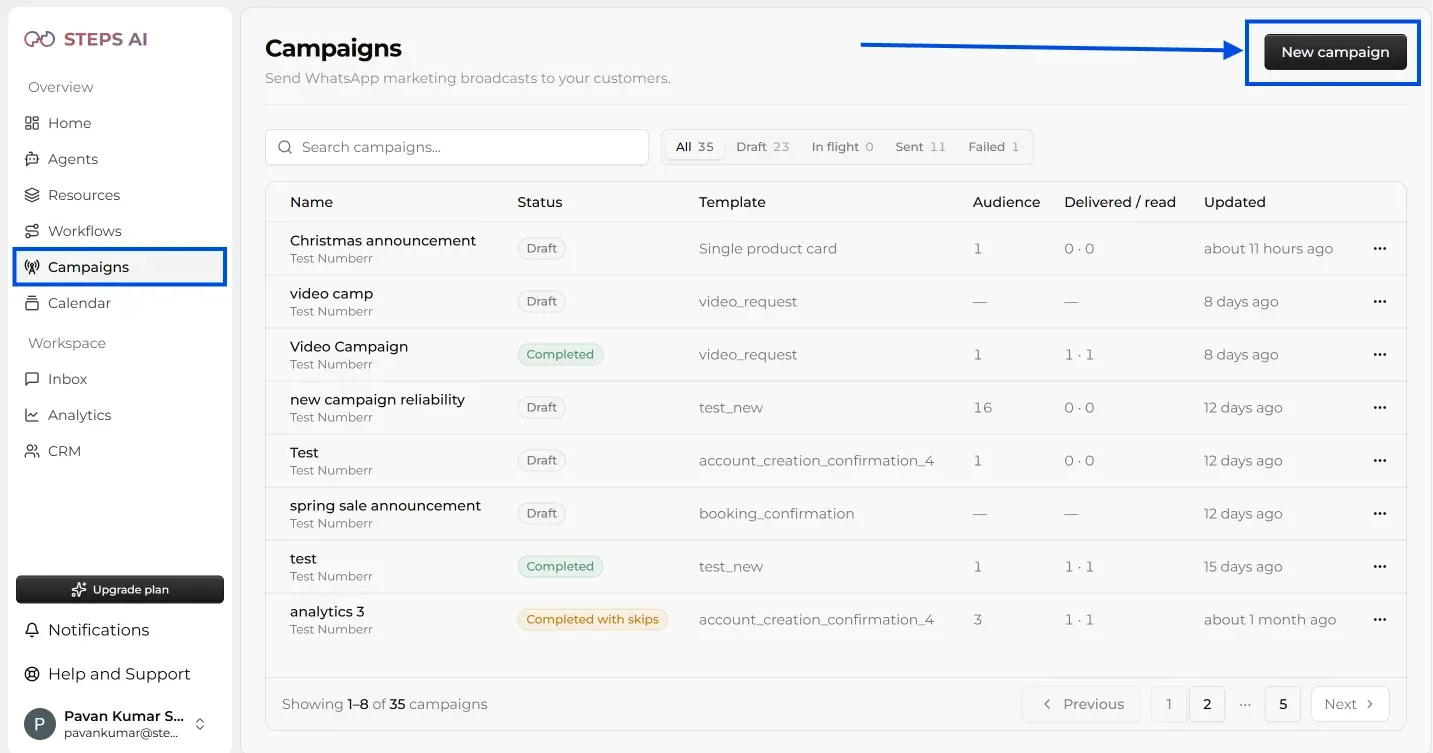
Go to Campaigns in the side panel. This page lists every campaign you've created, with its status, audience size, and delivered and read counts, so you can always find a campaign again later.
Click New campaign. The campaign wizard walks you through six steps: Sender, Template, Audience, Message, Review, and Launch. A campaign summary on the right fills in as you go, showing your sender, template, eligible recipients, and estimated cost.
Step 2: Pick your sender and name the campaign
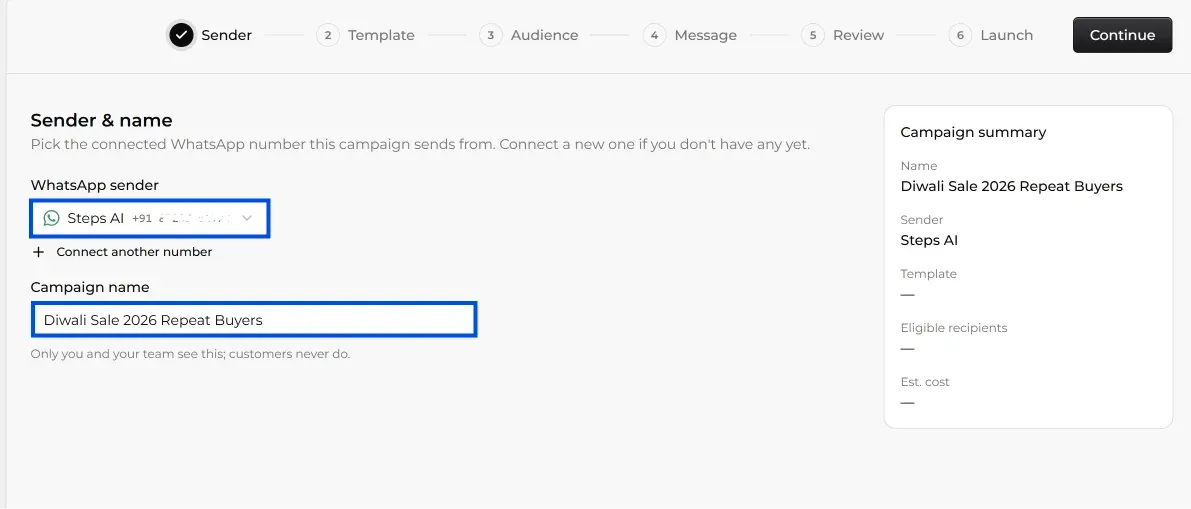
On the Sender step, choose the WhatsApp number this campaign sends from, then give the campaign a name. Only you and your team see the name. Customers never do. Then click Continue.
If this is your first campaign, you'll connect your number here first:
- Choose your agent from the Agent dropdown. Your WhatsApp number will send the campaign, and this agent will handle the replies.
- Click Connect with Meta. Meta's official sign-up pop-up opens.
- Follow the steps in the pop-up. Meta sends a verification code to your WhatsApp number.
- Enter the code, then click Next.
After that, your number appears in the WhatsApp sender dropdown every time. You can add more numbers with Connect another number.
No API access yet? We can register the WhatsApp Business API for you. You'll need a business phone number, and your Meta business portfolio is free to set up.
Already running your shop on the WhatsApp Business app? Meta's coexistence feature lets you connect that same number and keep using the app on your phone.
If Meta says "This phone number is already registered to a WhatsApp account," the number is still active on another WhatsApp account. Remove it from that account, wait about three minutes, and try again. If it's your WhatsApp Business app number and you want to keep using the app, choose the option to connect your existing Business app during sign-up instead.
Step 3: Choose your template
On the Template step, pick an approved template. You can filter by Marketing, Utility, or Authentication, or search by name. Templates range from plain text to single product cards and product carousels with 2 to 5 cards.
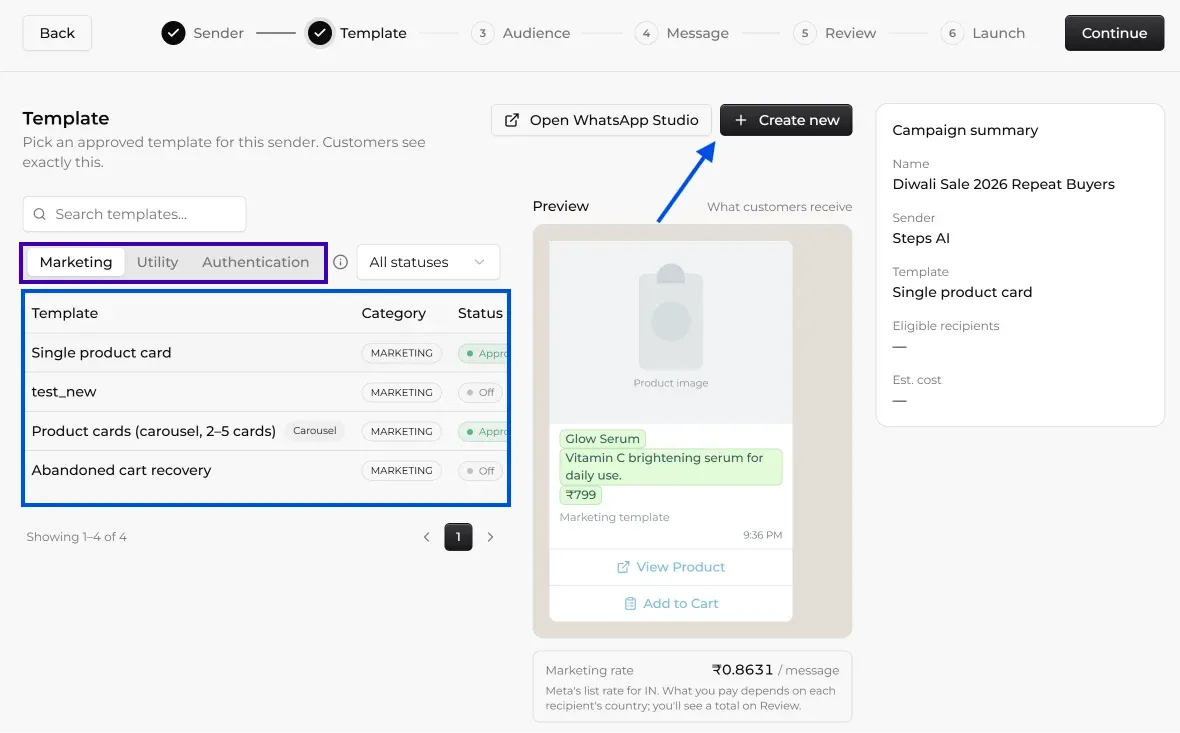
The preview shows exactly what customers will receive. Underneath, you'll see Meta's rate for that type of message. At the time of writing, a WhatsApp marketing message to a customer in India costs about ₹0.86.
Need a new template? Click Create new and build it right there:
- Give it a name, a language, and a category (marketing, utility, or authentication).
- Add a header if you want one, like an image or a video.
- Write the body, and click Add variable to insert placeholders like {{1}} for details that change for each customer, such as their name or order number.
- Add a footer, like "Reply STOP to opt out."
- Add buttons: Visit site, View product, Call, or Quick reply.
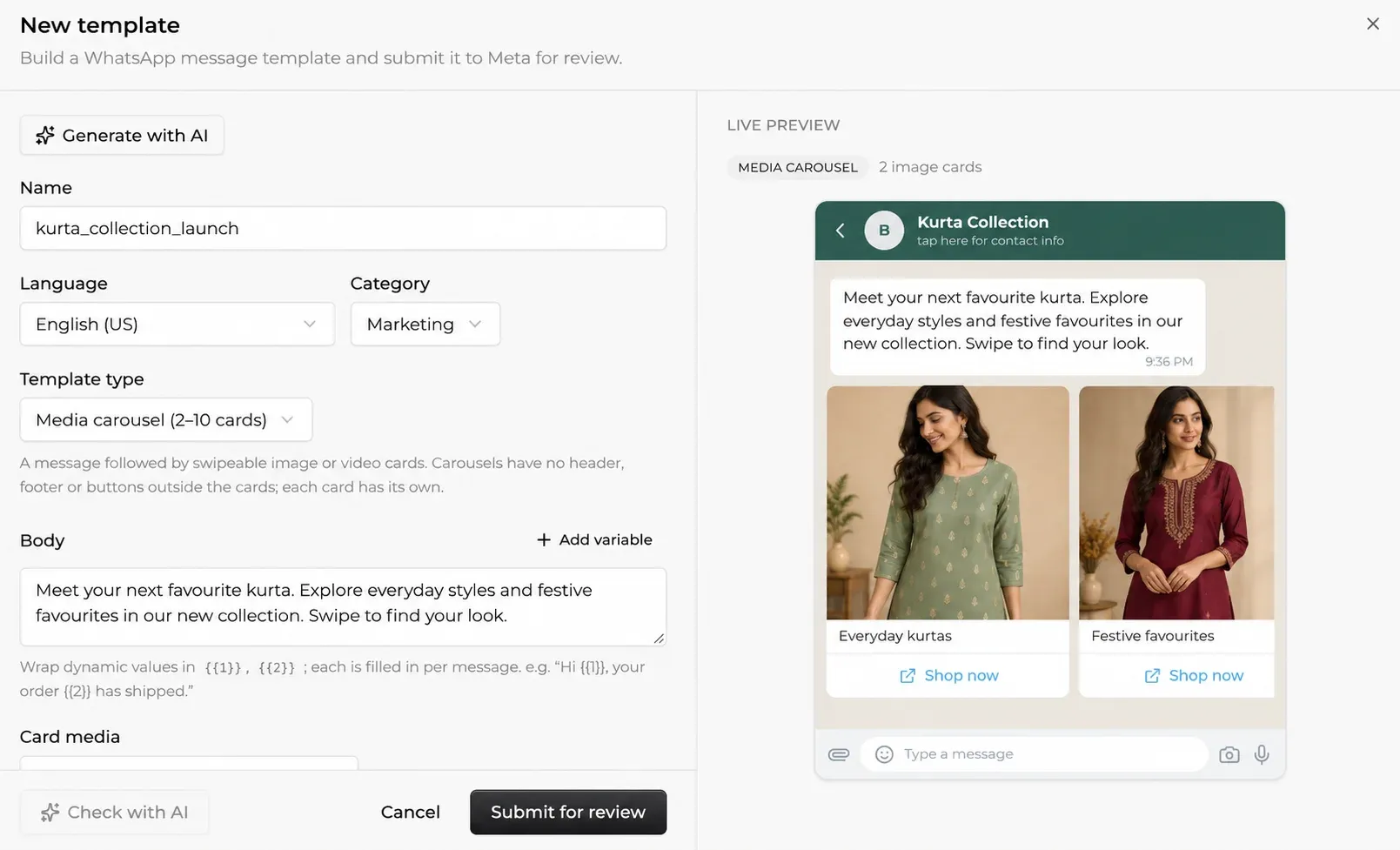
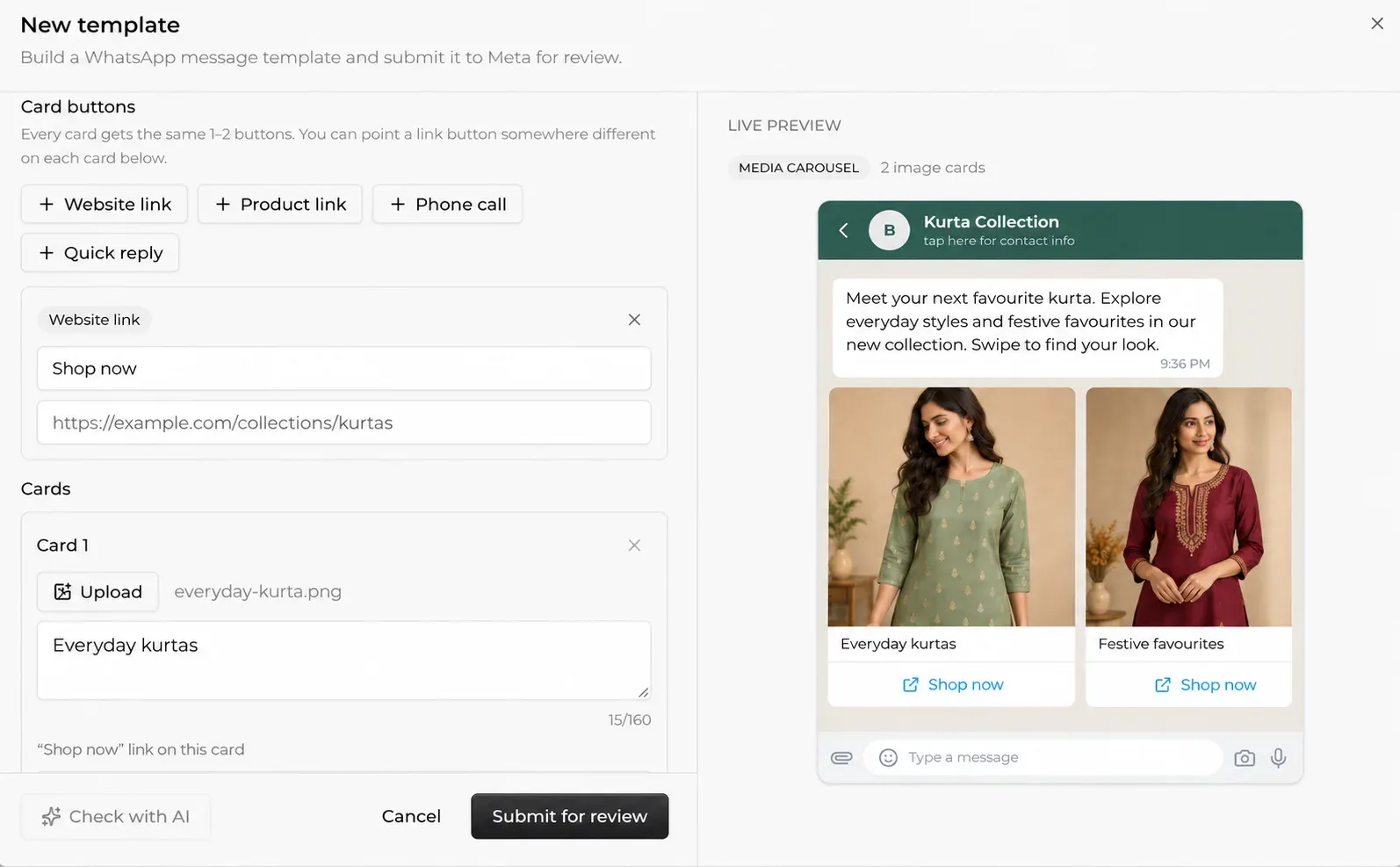
The live preview updates as you type. When you're happy, click Submit for review. Meta reviews the template, and once it's approved, it appears in your list.
When you click Continue, Steps AI asks you to confirm your choice, because the template can't be changed after this step. Your campaign is saved as a draft, so you can come back and keep editing it from the Campaigns page.
Step 4: Select your audience
On the Audience step, choose where your recipients come from. There are four options:
- Shopify customers: filter your store's customers by tags, orders, spend, or location.
- Shopify segment: use a segment you've already built in Shopify.
- Add customer: type in individual contacts yourself, row by row.
- Upload a CSV: import contacts from your own list.
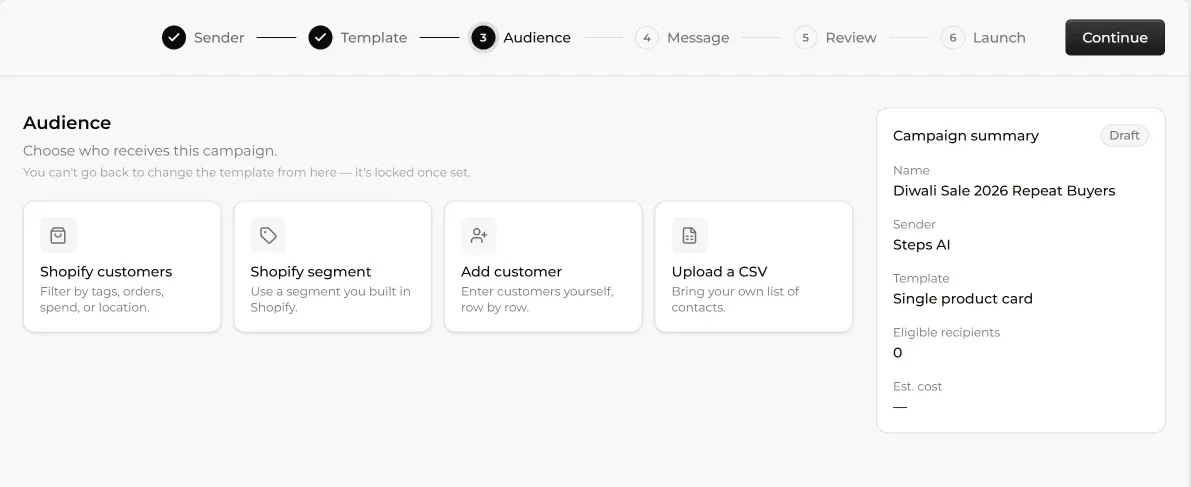
You can combine sources with Add source. Save your changes, and the recipients table shows everyone who matched, along with whether each person can be messaged. The campaign summary updates with your number of eligible recipients.
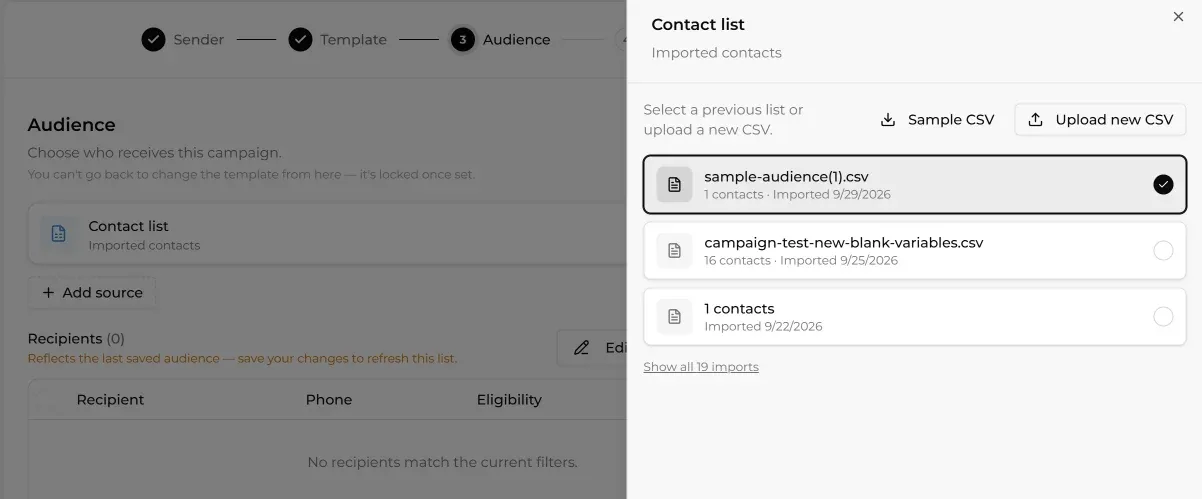
Step 5: Fill in your message
On the Message step, fill in your template. This is where message personalisation happens. Personal details, like each customer's name, are filled in automatically from your audience, so your campaign feels personal even though it goes to multiple recipients simultaneously. If you uploaded a CSV, each variable is matched to a column in your file.
If your template has an image or video header, upload the file here. Images can be JPEG or PNG up to 5MB, and videos can be MP4 or 3GP up to 16MB. The same file goes to everyone. Then fill in any fixed details, like a product name, price, or description, and check the live preview.
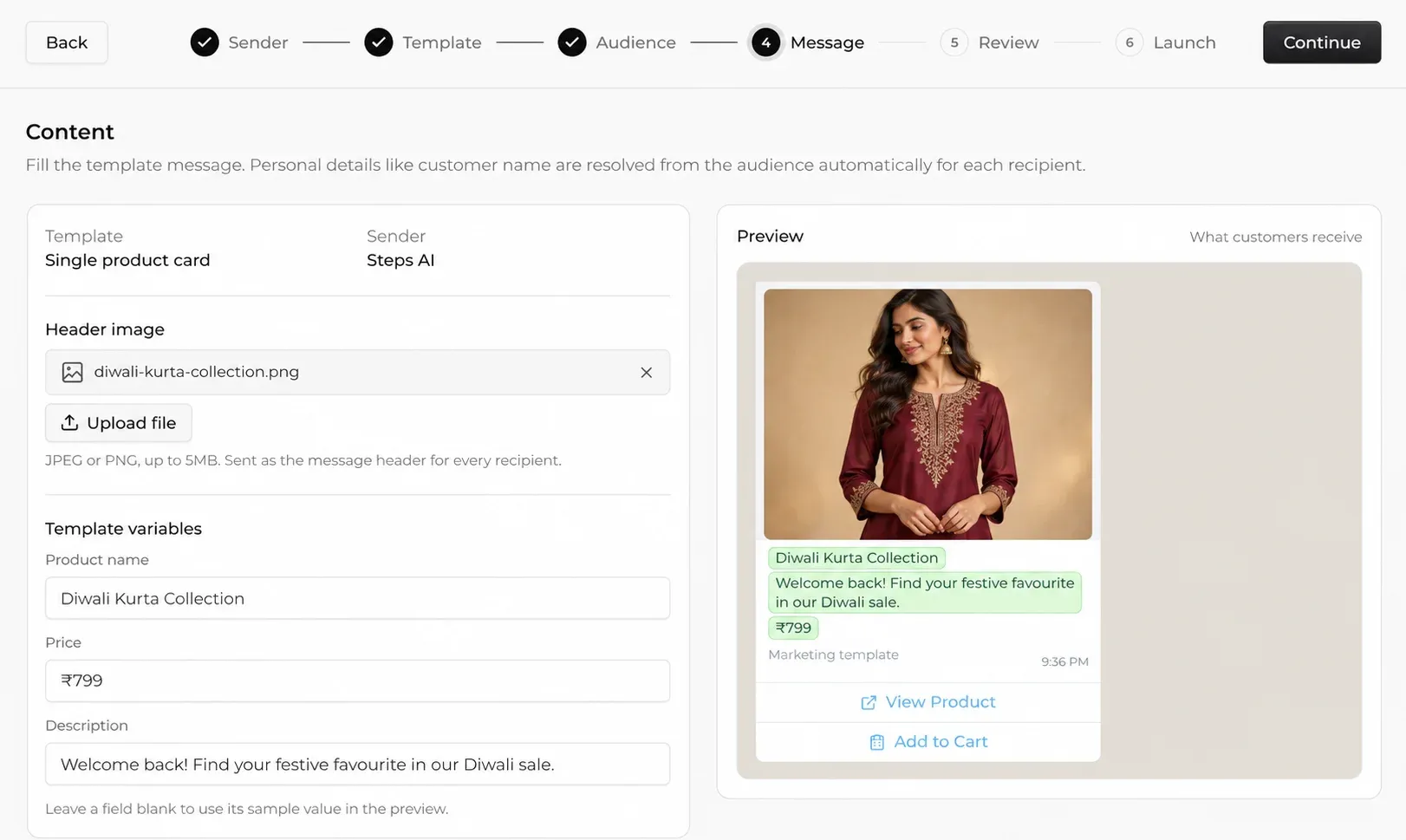
One thing to watch: if a contact has a blank value for a variable, they're skipped, so nobody gets a message that starts with "Hi ,". To include them anyway, add a fallback, like "there," and they'll get "Hi there" instead.
Step 6: Run the review
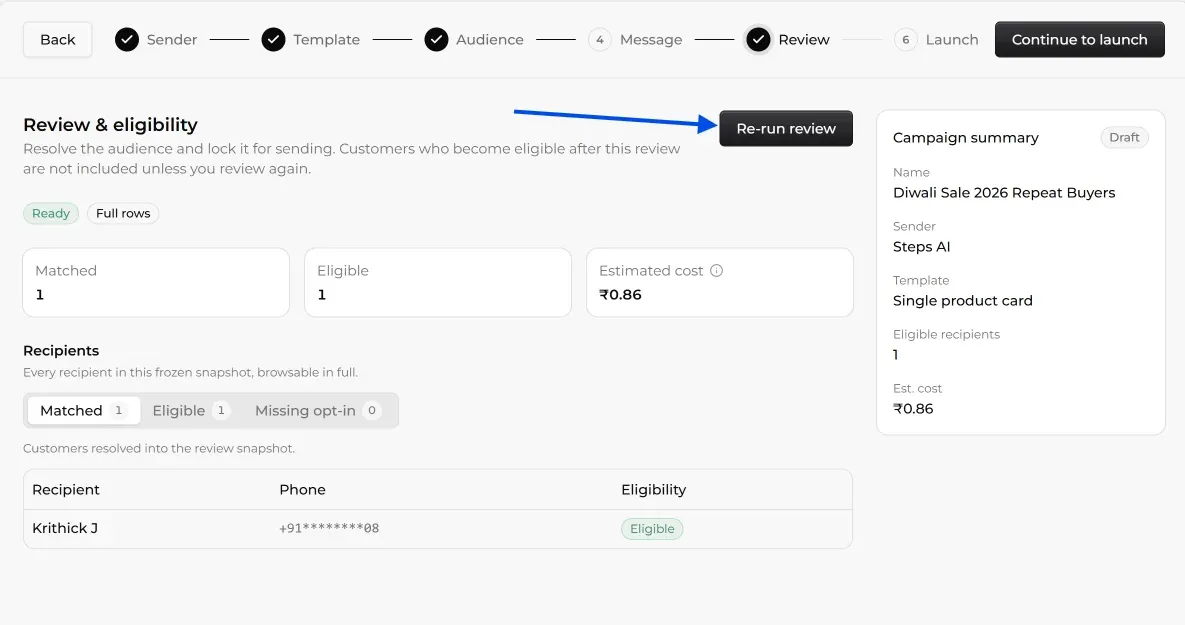
On the Review step, click Run review. Steps AI checks your audience, confirms who can be messaged, and locks the list for sending. Anyone who becomes eligible after this won't be included unless you run the review again. When it's done, click Continue to launch.
Step 7: Send now or schedule
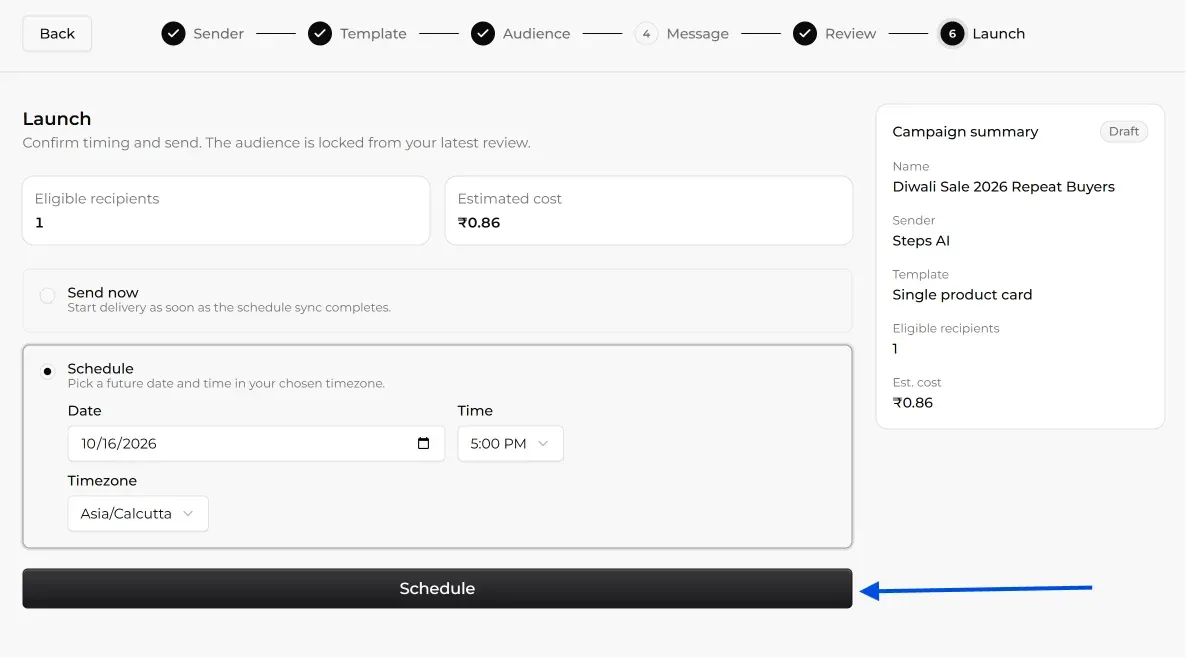
The Launch step shows your final number of eligible recipients and the estimated cost of the whole campaign. Choose Send now, or choose Schedule to pick a future date and time in your chosen time zone. The "Send" button tells you exactly how many people the campaign will go to before a single message goes out, so there are no surprises.
Step 8: Track results and let your agent handle replies
Open the campaign from the Campaigns page to track campaign performance.
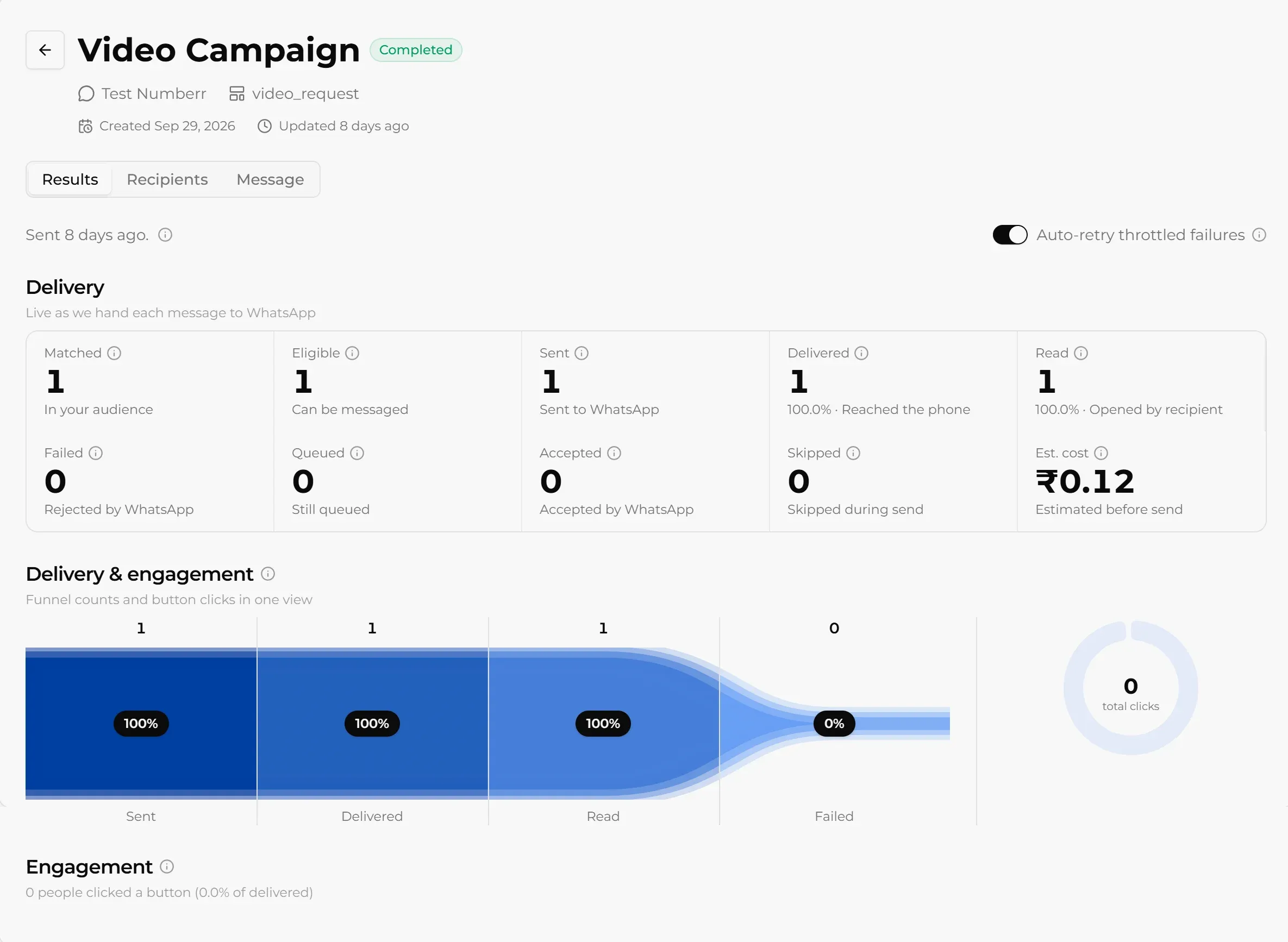
The Results tab updates live and shows both delivery and customer engagement:
- How many people matched your audience and could be messaged
- How many messages were sent, delivered, and read
- How many failed, were skipped, or are still queued
- How many people clicked a button
- The estimated cost
If WhatsApp holds some messages back because of sending limits, they're retried automatically, and you can switch this off if you prefer.
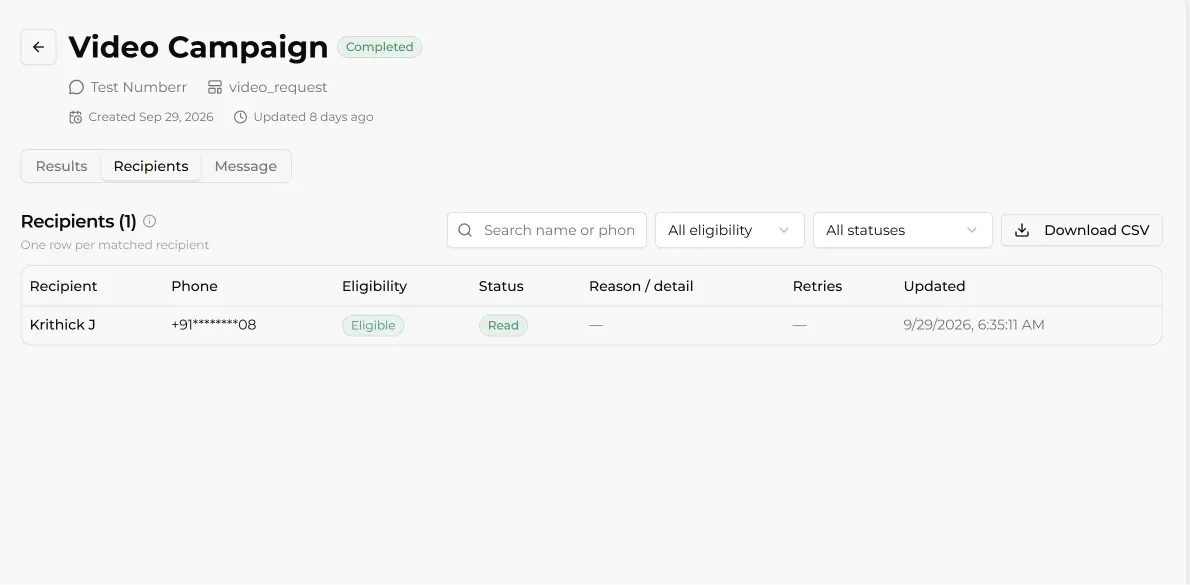
The Recipients tab shows every person's status, with a reason if a message didn't go through, and you can download it as a CSV.
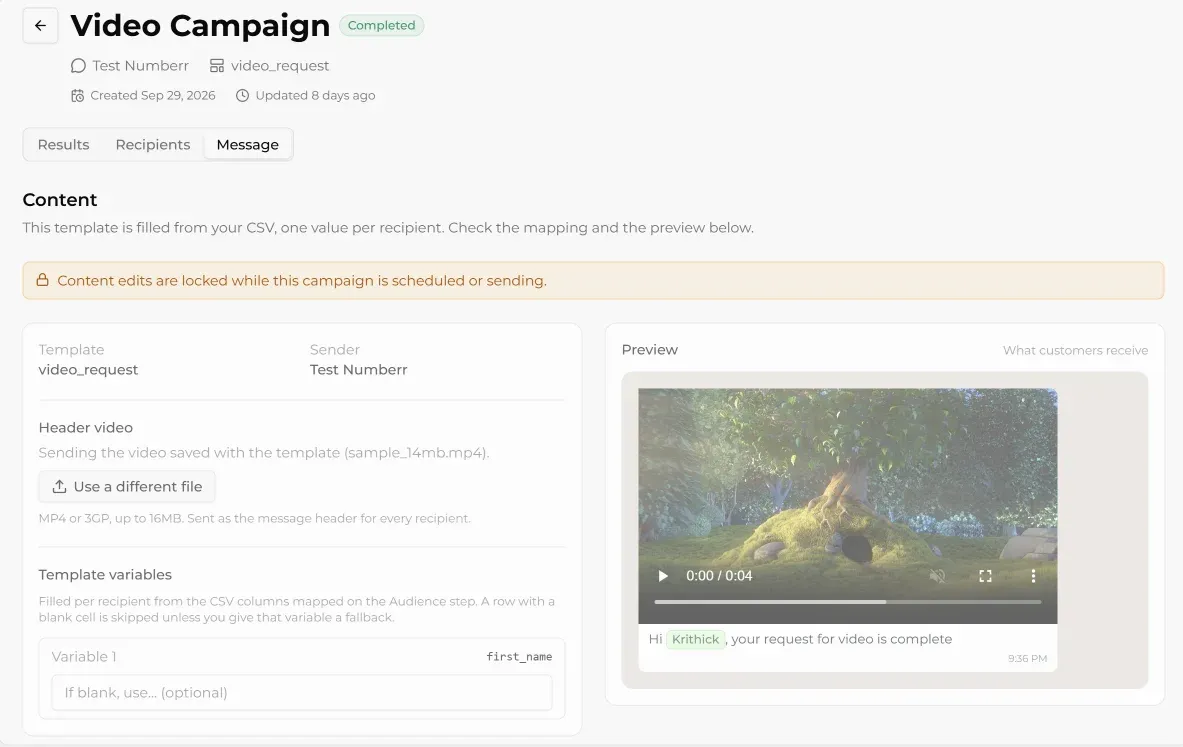
The Message tab shows exactly what was sent.
Meanwhile, replies go straight to your AI agent, which can talk to multiple customers at once. It answers questions, shows product cards, and helps customers check out in the chat. Anything it can't handle passes to your team in the shared inbox, with the full chat history. The revenue dashboard then shows the paid Shopify orders and revenue the campaign brought in.
You choose the sender, the template, the audience, and the time, and your agent takes care of every conversation that follows.
Messages you can automate instead of broadcasting
Some messages shouldn't be broadcasts at all. They work better when they go out automatically, to one customer, at the exact moment it matters. In Steps AI, these run on their own once you switch them on:
- Abandoned cart recovery: when a shopper leaves items in their cart, they get a WhatsApp message with a photo of the product and a button to finish their order.
- Cash-on-delivery confirmation: every new COD order gets an instant WhatsApp confirmation, which cuts down fake orders and parcels that come back.
- Missed-call auto-reply: if a customer calls your WhatsApp number and nobody picks up, they get a message straight away instead of silence.
- Click-to-WhatsApp ads: you can create Meta ads that open a chat with you, right from the app. Everyone who taps chooses to message you, so these ads also grow your opted-in list for future broadcasts.
For anything more custom, the visual automation builder lets you drag steps together, like sending buttons, asking for an email, or waiting for a reply, with no code. If you'd like ideas, these WhatsApp chatbot examples show what stores automate most.
A simple rule of thumb: broadcast news to many people, and automate the messages one person needs right now.
Broadcast habits that keep your number safe
WhatsApp keeps a close eye on broadcast behaviour to stop spam. Whether you use the free app or the API, these habits protect your number and help you send effective broadcast messages:
- Only message people who expect to hear from you. Blocks and spam reports hurt your number faster than anything else.
- Split your audience. Send new-arrival news to people who bought from that category, and save your best offers for repeat buyers, instead of sending one generic blast to everyone.
- Make it personal. Use the customer's name and mention something from their purchase history, like a product they bought before.
- Give each message one clear call to action, like "Reply YES to reserve yours" or "Tap to shop the sale."
- Don't send too often. Most stores do well with a few messages a month, not a few a week.
- Make it easy to opt out with a "Stop" button or a line telling people how.
- Send at sensible times, like early evening rather than 6 am.
- Don't keep messaging people who never reply. WhatsApp is testing a monthly cap on messages sent to people who don't respond.
If people keep blocking or reporting your broadcasts, WhatsApp may restrict your number or lower your limits, so quality always beats quantity.
Frequently asked questions
Will people know I sent a broadcast?
No. Your message appears in their chat with you, like any other message. They can't see who else received it or tell that it came from a broadcast list.
Why can't I find broadcast lists in WhatsApp?
Usually, it's because you're on WhatsApp Web or the desktop app, which don't support broadcast lists. Open WhatsApp on your phone instead. If you still can't see the option, update the app, then check the three-dot menu on Android or the top of the Chats tab on iPhone.
How do I see my broadcast lists?
Once you've sent a message to a list, it appears as a chat in your Chats tab. Lists you haven't used yet live in the broadcast lists menu, in the same place you created them.
Can I send a broadcast from WhatsApp Web or desktop?
Not from the app itself. Broadcast lists only work in the WhatsApp mobile app on Android and iPhone. If you'd rather run campaigns from your computer, an API tool like Steps AI lets you do that.
How many contacts can I add to a broadcast list?
Up to 256 contacts per list. You can create as many lists as you like, so a bigger customer base can be split across several.
Can I schedule a WhatsApp broadcast?
Not in the regular WhatsApp app. WhatsApp has said business broadcasts in the Business app will include scheduling, but they aren't available everywhere yet. With an API tool like Steps AI, you can schedule campaigns for any time zone.
Can I use the WhatsApp Business app and the API on the same number?
Yes. Meta's coexistence feature lets you keep the WhatsApp Business app on your phone while the same number sends campaigns through the API.