WhatsApp Business Web: How to Log In and Use It on a PC or Laptop
Tanu Adhikari · Nov 5, 2026WhatsApp Business Web is free. Log in from any PC with a QR code or your phone number.
Key takeaways
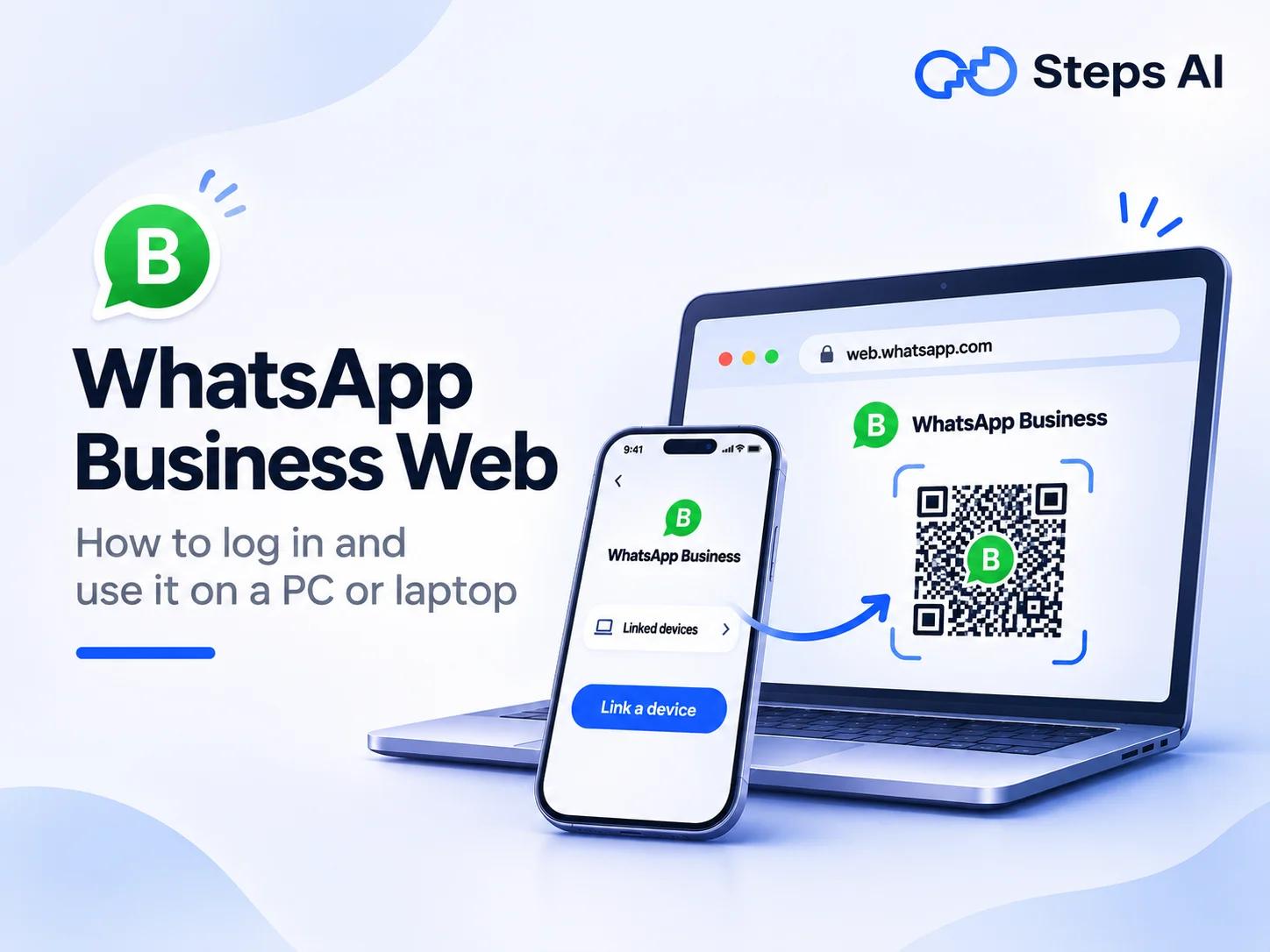
- WhatsApp Business Web is free. To log in, go to web.whatsapp.com on your computer. Then scan the QR code with the WhatsApp Business app on your phone, under Linked devices > Link a device.
- If the QR code won't scan, click "Log in with phone number" instead. Then type the 8-character code from your computer into your phone.
- You can link your account to up to four devices, plus your phone. Your phone doesn't need to stay online. Just open WhatsApp Business on it at least once every 14 days, or your computer will log out.
- On a computer, you can chat, send files, use labels and send quick replies. A few things still need your phone: creating quick replies, setting up automated messages and using broadcast lists to message many customers at once.
- You don't need a special "WhatsApp Business for PC" app. The normal WhatsApp desktop app for Windows and Mac works with your business account.
- The free app works well for one or two people. Bigger teams that need a shared inbox, automatic replies or bulk messages usually switch to the WhatsApp Business API.
WhatsApp Business Web lets you use your business chats on a computer. It uses the same WhatsApp account as the app on your mobile device, so you don't need a new login.
In this blog, you'll learn how to log in from Android, from iPhone or with just your phone number. You'll also see what works on a laptop, what still needs your phone and how to fix common login problems.
What is WhatsApp Business Web?
WhatsApp Business Web is the web version of the WhatsApp Business app. You open it in your browser and link it to your phone. Your customer conversations then show up on your computer screen.
It isn't a new account or a new app. WhatsApp calls it a "linked device", which is like a second screen for the account that already lives on your phone. Your WhatsApp messages, contacts and labels stay in sync. So if you reply from your laptop, the reply shows up on your phone too.
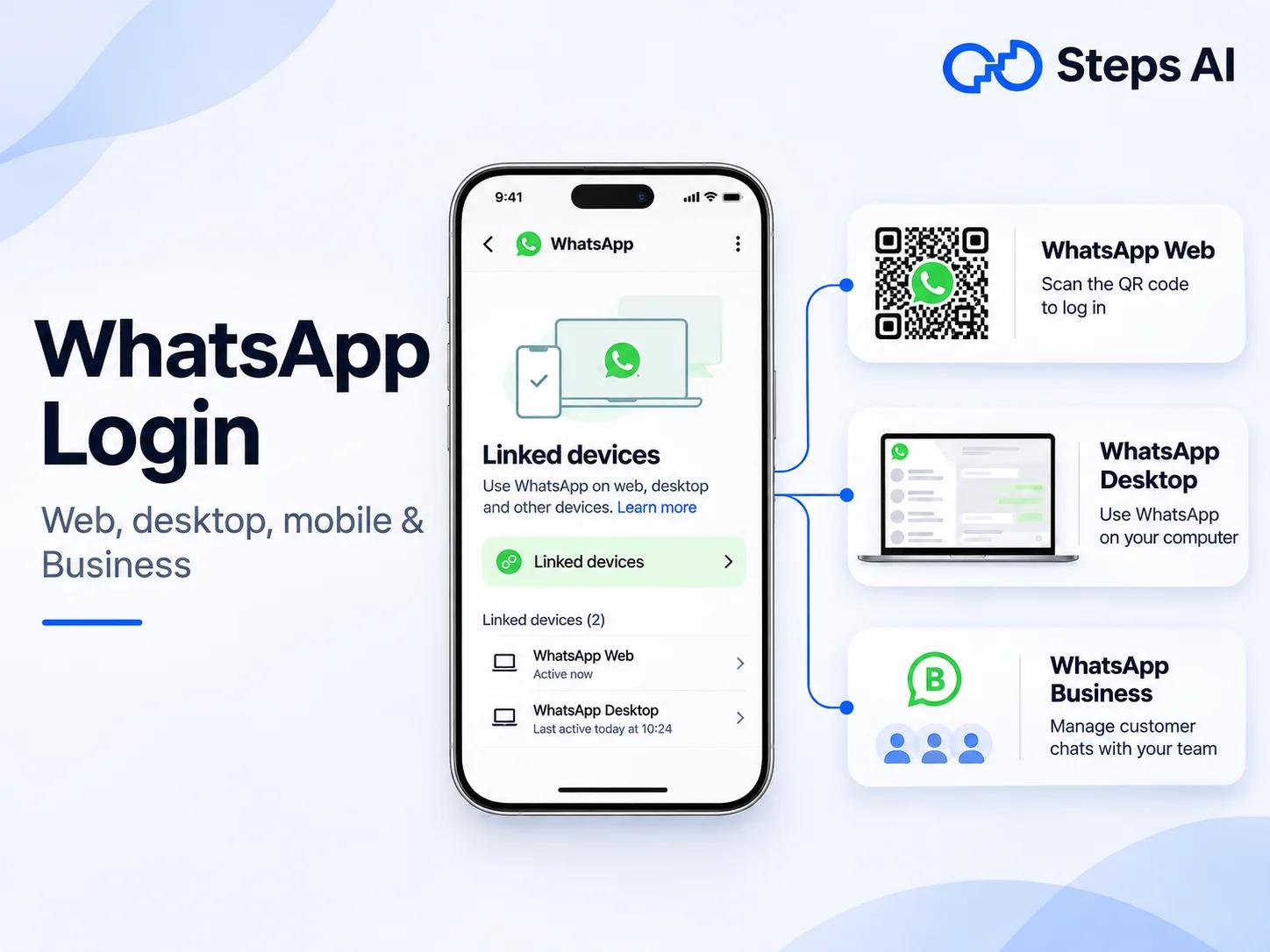
A lot of people ask if it's different from regular WhatsApp Web. It's actually the same website. What you see depends on which app scans the QR code. Scan with personal WhatsApp and you'll see your personal chats. Scan with WhatsApp Business and you’ll see your business chats, along with business features like labels, quick replies and your catalog. If you’re setting up personal WhatsApp instead, our WhatsApp login guide covers it.
The biggest reason businesses use it is time. Typing a long reply about delivery dates is much easier on a keyboard than on a phone. You can also drag an invoice from your desktop straight into a chat. If you manage customer communication for most of the day, those small savings add up.
How to log in to WhatsApp Business Web
Before you start, make sure WhatsApp Business is already set up on your phone. You can't create the account from a computer, and you'll need your phone to link new devices. Your phone and your computer both need an internet connection. They don't have to be on the same Wi-Fi, though.
To open WhatsApp Business Web, go to web.whatsapp.com on your computer. You’ll see a QR code. Scanning it is the quickest way to log in. Leave that page open, then follow the steps for your phone below.
On a shared or office computer, untick “Stay logged in on this browser” before you scan. That way, you're logged out as soon as someone closes the browser.
Scan the QR code from an Android phone
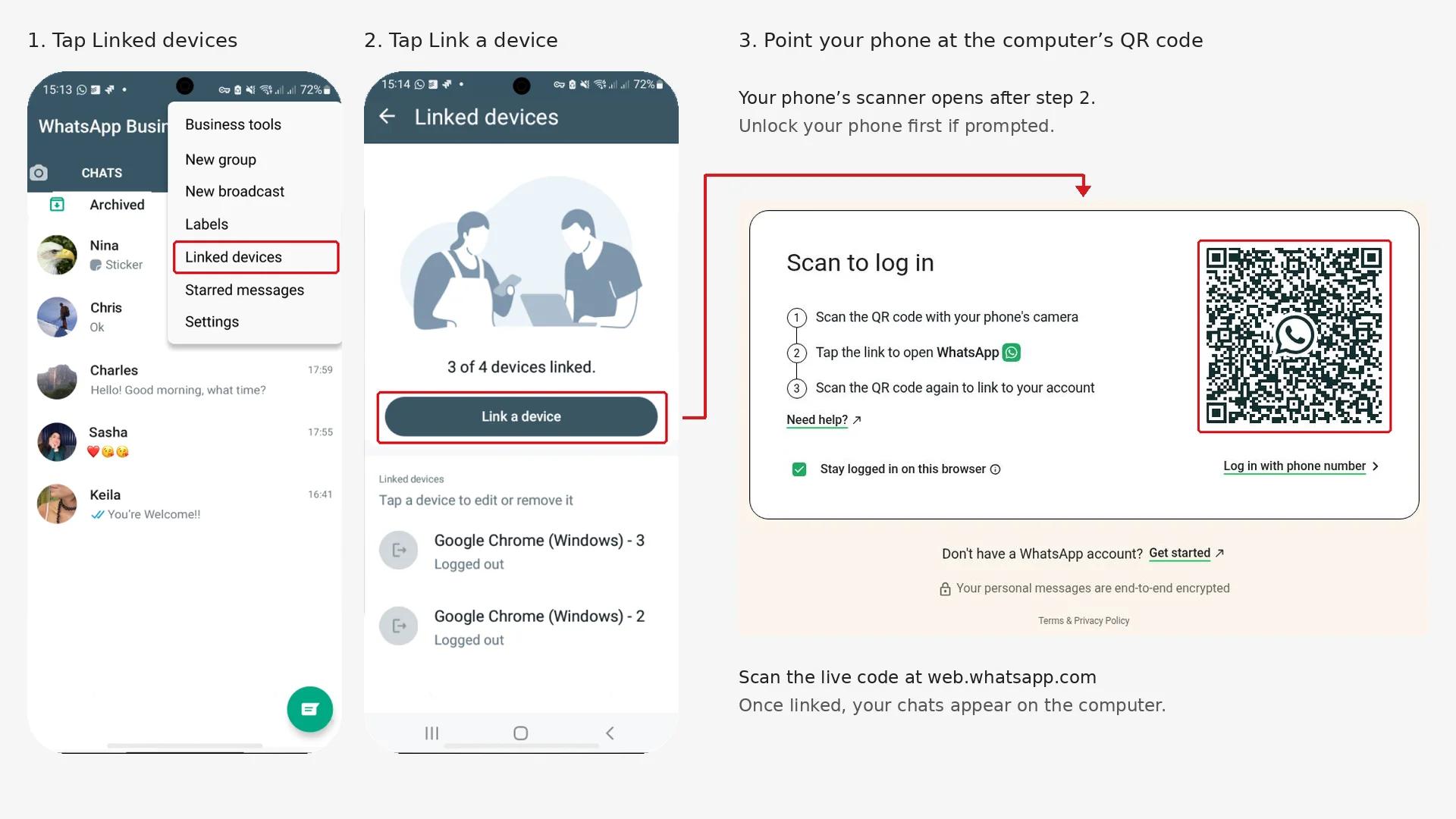
- Open WhatsApp Business on your phone.
- Tap the three dots (⋮) in the top-right corner. Then tap Linked devices.
- Tap Link a device. If your phone asks, unlock it with your fingerprint or PIN.
- Point your phone at the QR code displayed on your computer screen.
That's it. Your chats will start showing up in the browser. If you have lots of chats, give it a little extra time on the first load. These are the same steps WhatsApp uses for every linked device.
Scan the QR code from an iPhone
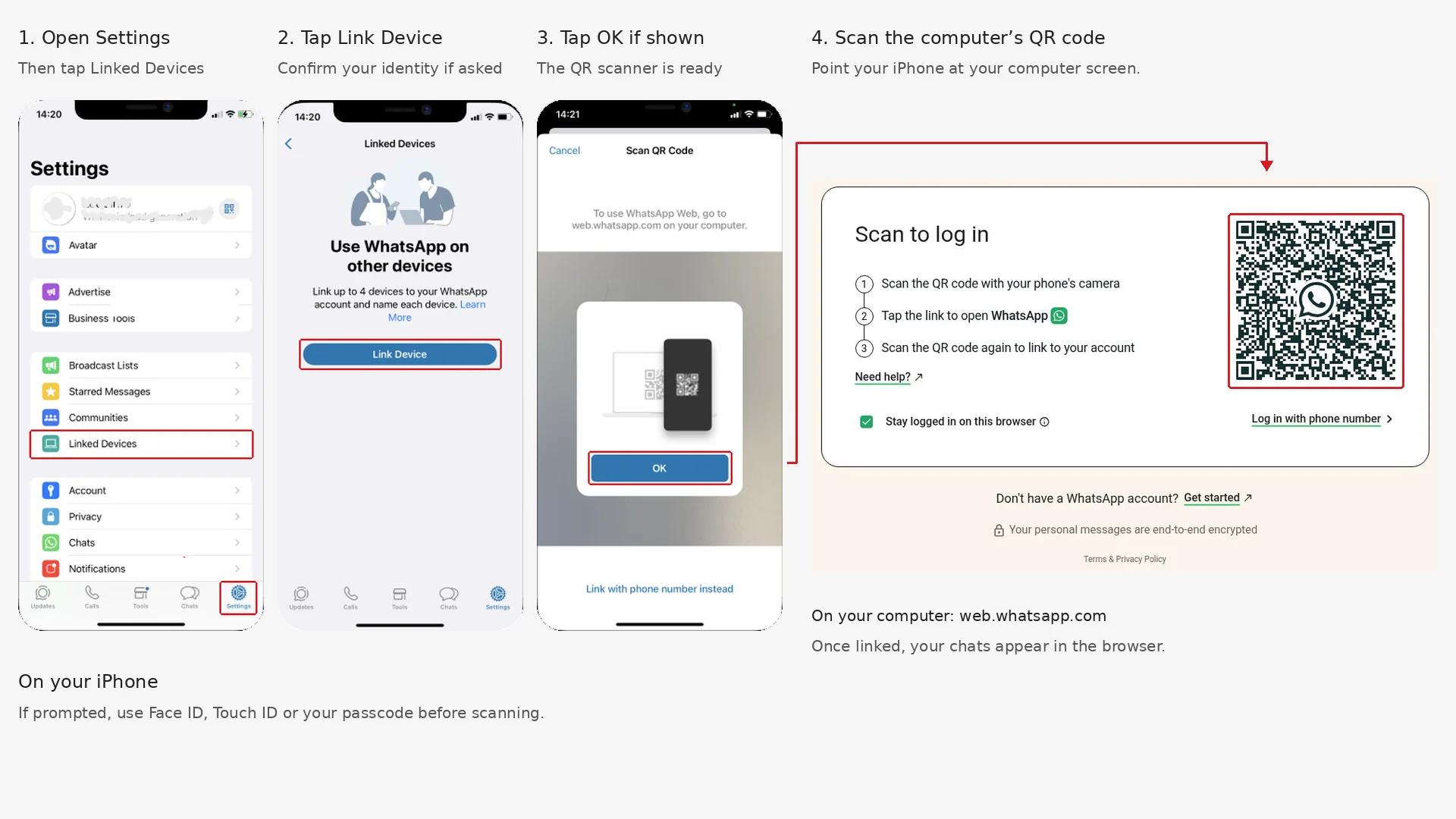
- Open WhatsApp Business on your iPhone.
- Tap Settings at the bottom right. Then tap Linked Devices.
- Tap Link a Device. If asked, confirm with Face ID, Touch ID or your passcode.
- Point your iPhone at the QR code displayed on your computer screen.
Log in with your phone number instead of a QR code
This is handy when your phone's camera isn't working, or the QR code just won't scan. Instead of scanning, you type a short code into your phone.
Open WhatsApp Web (web.whatsapp.com) and click Log in with phone number.
Pick your country code and type your WhatsApp Business number. Click Next. You'll see an 8-character code on your computer.
On your phone, go to Linked devices and tap Link a device. Then tap Link with phone number instead.
Type the code from your computer into your phone.
How to use WhatsApp Business on the Windows or Mac desktop app
Some people would rather use an app than a browser tab, and that works just as well. The desktop version does the same job as the web version, but it opens in its own window. You'll get desktop notifications even when your browser is closed. The app has also had calls and screen sharing for longer than the browser.
You don't need a separate WhatsApp Business app for your PC. Just install the normal WhatsApp desktop app. It opens whichever account you link from your phone, personal or business. So skip any unofficial downloads that claim to be "WhatsApp Business for PC."
Set up the Windows app
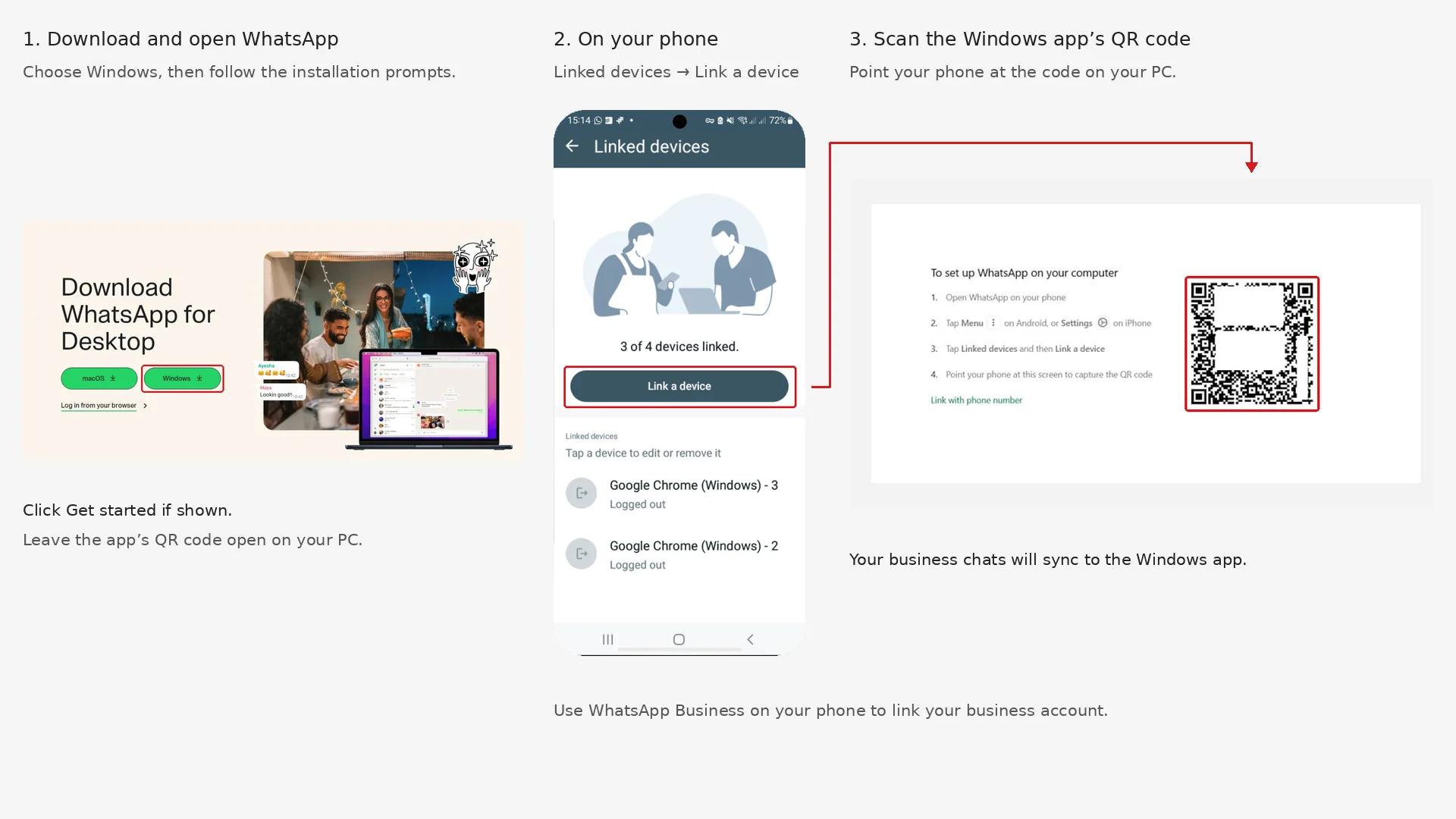
- Open the Microsoft Store and search for WhatsApp. You can also use the Windows button on WhatsApp's download page. You'll need 64-bit Windows 10, version 1903 or later.
- Install the app and open it. You'll see a QR code.
- On your phone, go to Linked devices > Link a device. Then scan the code.
Set up the Mac app
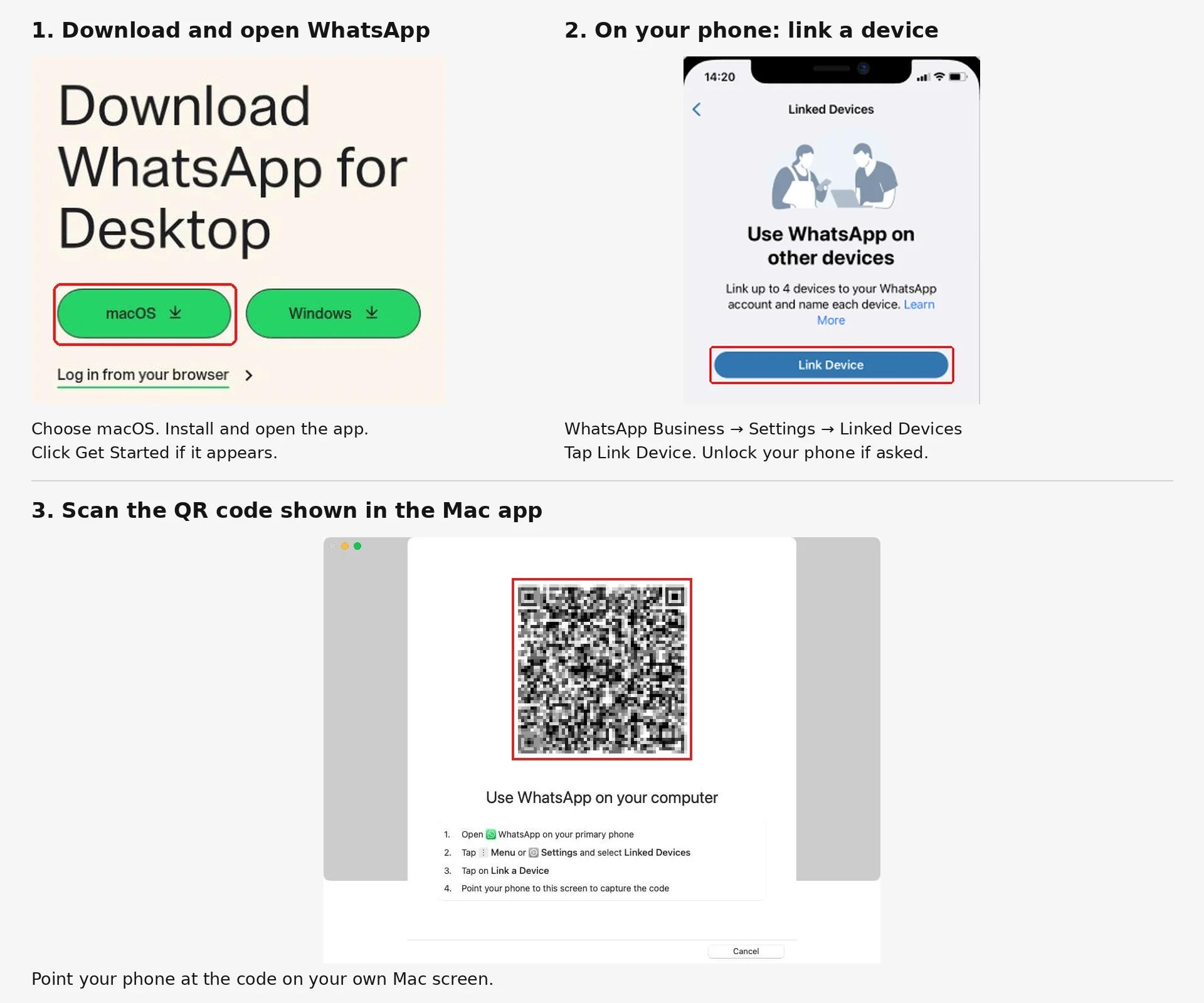
- Download WhatsApp from WhatsApp's download page or the Mac App Store. You'll need macOS 11 or later.
- Open the app. You'll see a QR code.
- On your phone, go to Linked devices in WhatsApp Business and scan the code.
If your computer is older, or runs Linux or ChromeOS, just use WhatsApp Business Web in your browser instead.
What works on WhatsApp Business Web, and what still needs your phone?
Once you're logged in, you can do most of your daily replying from your computer. A few setup jobs still happen on your phone. Here's how it splits:
| What you want to do | Works on a computer? | Good to know |
|---|---|---|
| Send and receive messages, photos, videos and documents | Yes | You can drag and drop files from your desktop |
| Use quick replies | Yes | Type “/” to pick one. Create or edit them on your phone under "Tools" |
| Sort chats with labels like "Pending payment" | Yes | Labels you add here show up on your phone too |
| Update your WhatsApp Business profile, like business hours or address | Yes | You can edit it on WhatsApp Web or your phone |
| Greeting and away messages (automated messages) | They still go out | You set them up on your phone |
| Share products from your catalog | Yes | You can add new products on WhatsApp Web and the Windows app. On a Mac, add them from your phone. |
| Voice and video calls | Desktop app: yes. Browser: rolling out | Calls in the browser are still reaching everyone, so the desktop app is the safer bet for now. |
| Broadcast lists | No | Phone only |
| Live location and posting a status | No | Phone only |
WhatsApp started rolling out calls in the browser in July 2026. If you don't see the call buttons on WhatsApp Web yet, use the desktop app for calls for now.
The easy way to remember it is to set things up on your phone, then manage chats from your computer.
How many devices can you link, and is it safe?
WhatsApp's multi-device support lets you link up to four devices to one WhatsApp Business account, plus your phone. That could be your phone, two office laptops and a tablet. If you need more, Meta Verified is a paid add-on that allows up to 10 devices, depending on the plan. It also lets you assign chats to specific people on your team.
You don't need to keep your phone connected all day. There are just two rules to remember:
- If you don't open WhatsApp Business on your phone for more than 14 days, all your linked devices log out.
- If you don't use a linked device for 30 days, that device logs out on its own.
WhatsApp Business Web is secure by default. Every linked device uses end-to-end encryption, so only you and your customer can read your messages.
In practice, most risks come from other people using your computer, not from WhatsApp itself. A few small habits keep your account safe:
- Turn on app lock. In WhatsApp Web, go to Settings > Privacy > App lock and set a password. WhatsApp will then lock itself after the time you choose.
- Check your linked devices now and then. On your phone, open Linked devices. If you see a device you don't recognise, tap it and tap Log out.
- Log out from your phone if you forget. Left your laptop logged in at the office? Use the same steps to log it out from anywhere.
WhatsApp Business Web not working? Here's how to fix it
Most WhatsApp Business Web login problems take a minute or two to fix. Find the problem you're seeing below.
The QR code won't scan
- Scan from inside WhatsApp Business (Linked devices > Link a device). Your phone's normal camera app won't link your account.
- The code expires after a short while. If it has, click the reload option on the page to get a new one.
- Turn up your screen brightness and wipe your phone's camera lens. Then hold the phone a little further back.
- Turn off any VPN or ad blocker, and reload the page.
- Still stuck? Use Log in with phone number instead.
Chats aren't loading or syncing
- Check that your phone and computer both have a working internet connection.
- Update WhatsApp Business on your phone and update your browser, because older app versions can cause sync problems.
- Clear your browser's cache and cookies for web.whatsapp.com, or try another browser.
- If nothing else works, log the device out from your phone and link it again.
You keep getting logged out
Check your phone first. If you haven't opened WhatsApp Business on it in the last 14 days, your computer gets logged out.
If that's not it, look at your browser. A private window logs you out every time you close it, and so does a setting that clears cookies when the browser closes. The same thing happens if "Stay logged in on this browser" was unticked when you scanned.
Where WhatsApp Business Web falls short for a growing business
For one or two people, WhatsApp Business Web is a great way to manage customer conversations. It gets harder when multiple team members start sharing one number. These are the problems teams usually run into:
- Nobody can tell who's replying. Everyone sees the same inbox. So two people might answer the same customer, or each might think the other one did.
- You run out of screens. Four devices plus your phone is the limit, unless you pay for Meta Verified.
- No one answers when you're away. Greeting and away messages are the same fixed text every time. A customer who asks "is this in size M?" at 11pm has to wait until morning, and some of them won't.
- Bulk messages are limited. If WhatsApp marketing is part of your plan, each broadcast list holds only 256 contacts. The message only reaches people who saved your number, and you can only send it from your phone.
- You can't see how things are going. There are no reports on how fast your team replies or which questions come up most.
None of this means the app is bad. WhatsApp Business was simply built for one owner answering one phone.
WhatsApp Business Web vs the WhatsApp Business API: when to switch
Five screens is plenty for an owner and one helper. It starts to feel crowded when three or four people are answering customers, or when the same few questions take up half your day.
At that point, most businesses need three things:
- A shared inbox where each person logs in on their own, and everyone can see who's handling which chat.
- Something that answers common questions right away, even at night, and hands the tricky ones to a person without losing the chat history.
- A way to send bulk messages to more customers, without the 256-contact limit.
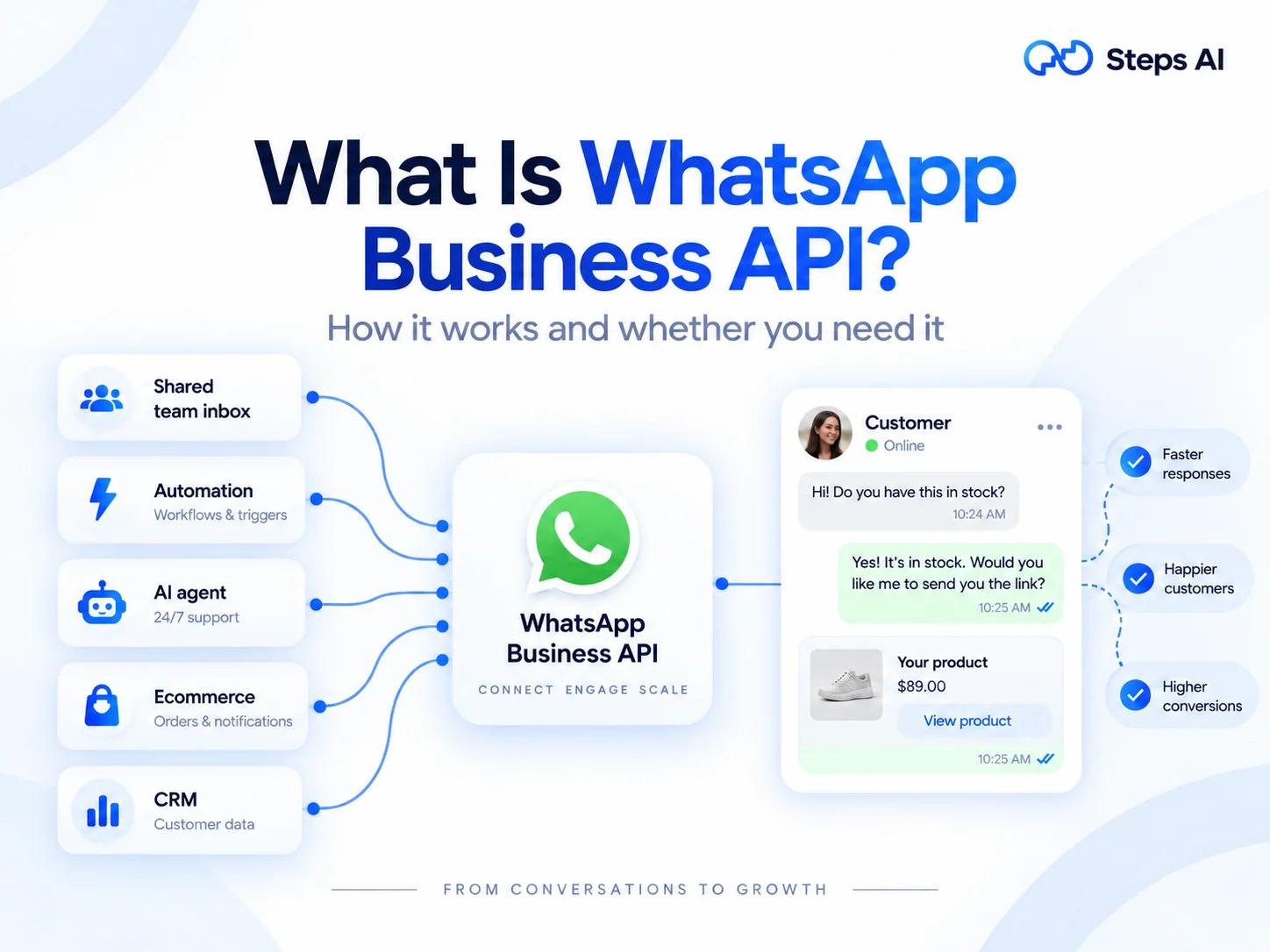
The free app can't do these, so growing businesses move to the WhatsApp Business API. It's WhatsApp's official way to connect your number to business software, instead of to a phone app.
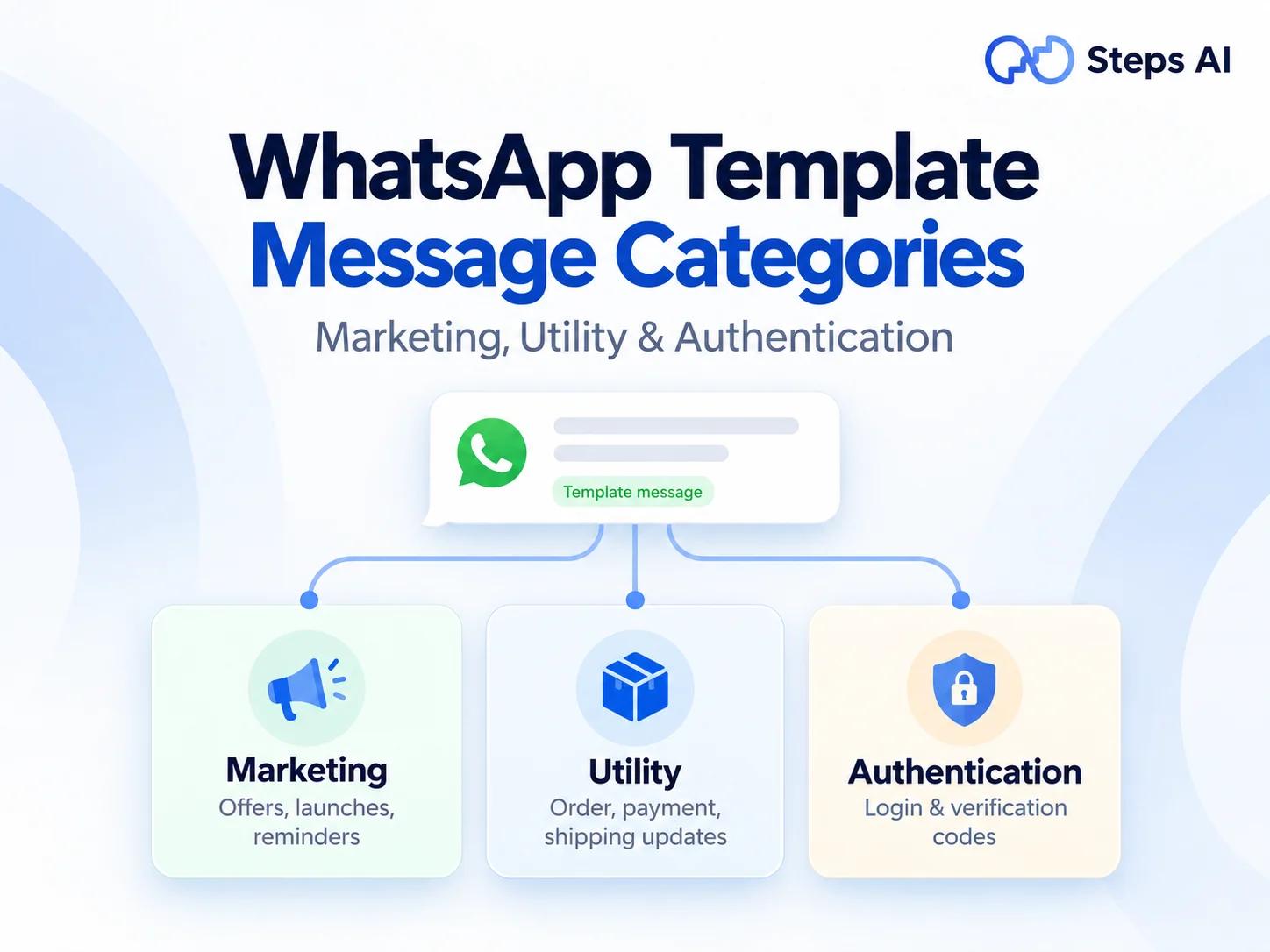
The API doesn't have a screen of its own, so you use it through a tool built on top of it. When your business starts a conversation, you use message templates that Meta approves first. The API also isn't free, because Meta charges for some messages.
| WhatsApp Business app and Web | WhatsApp Business API with a tool | |
|---|---|---|
| Who can reply | Up to 5 screens sharing one login | Each team member has their own login |
| Automatic replies | Fixed greeting and away messages | Software can answer questions and hand chats to people |
| Broadcasts | 256 contacts per list, phone only | Bigger sends with approved templates |
| Cost | Free | Meta's message charges plus the tool's price |
That's the gap we built Steps AI to fill. You connect your own WhatsApp number through Meta. Our WhatsApp AI agent then answers customers using your own products, policies and FAQs. When a chat needs a real person, someone on your team takes over with the whole conversation in front of them.
It all sits in one inbox, along with your website, Instagram and Messenger chats. You can also send WhatsApp broadcasts with approved templates, and when customers reply, the agent picks up the conversation so no one is left waiting.
We don't sell WhatsApp numbers, so you'd connect the one you already use. And if one or two people can comfortably keep up with your messages, you don't need any of this. The free app and WhatsApp Business Web will do the job well, and we'd tell you the same thing if you asked.
FAQs
Is WhatsApp Business Web free?
Yes. The WhatsApp Business app, WhatsApp Web and the WhatsApp desktop apps are all free. You only pay if you add something like Meta Verified or move to the WhatsApp Business API.
Do you need the WhatsApp Business app on your phone first?
Yes. You can't create a WhatsApp Business account or pick your business name from a computer. Install the app on your phone and verify your number first. Then link your computer from Linked devices.
Can you use WhatsApp and WhatsApp Business on the same computer?
Yes, just not in the same window. The easiest way is to link one account to the desktop app and the other in your browser. You can also use two different browsers, one for each account.
Which browsers work with WhatsApp Business Web?
WhatsApp works best on the latest versions of Chrome, Firefox, Edge, Safari and Opera. Logging in to WhatsApp Business in Chrome works exactly like the steps above. Older browsers like Internet Explorer aren't supported.