WhatsApp login: How to Sign In on Web, Desktop, Mobile and WhatsApp Business
Tanu Adhikari · Nov 4, 2026Log in to WhatsApp on web, desktop or phone, and fix login errors fast.
Key takeaways
- WhatsApp has no username or password. Your account lives on one primary phone, and every other screen is a linked device.
- Two ways to log in to WhatsApp Web: scan the QR code at web.whatsapp.com, or click “Log in with phone number” and type the eight-character code into your phone.
- You can link up to four devices to one account. Your phone doesn't need to stay online, but you must open WhatsApp on it at least once every 14 days or the linked devices get signed out.
- Every WhatsApp account needs a phone number. You can get your login code by email instead of SMS if you’ve added one, and a passkey can replace the code, but you can’t sign in with Google or skip verification altogether. Any site or app promising that is a scam.
- Most login failures come from four things: a stale QR code, an outdated app, blocked browser cookies, or a weak internet connection on either device.
- The free WhatsApp Business app caps you at five screens total, or 10 with a paid Meta Verified subscription. Past that, teams move to the WhatsApp Business API and a shared inbox.
Most people searching for "WhatsApp login" want one of three things: to get WhatsApp open on a laptop, to sign in on a new phone, or to fix a login that stopped working. This blog covers all three, plus what changes when the account belongs to a business and more than one person needs access.
How WhatsApp login works (there's no username or password)
This is the part that confuses people, and it explains almost everything else in this blog.
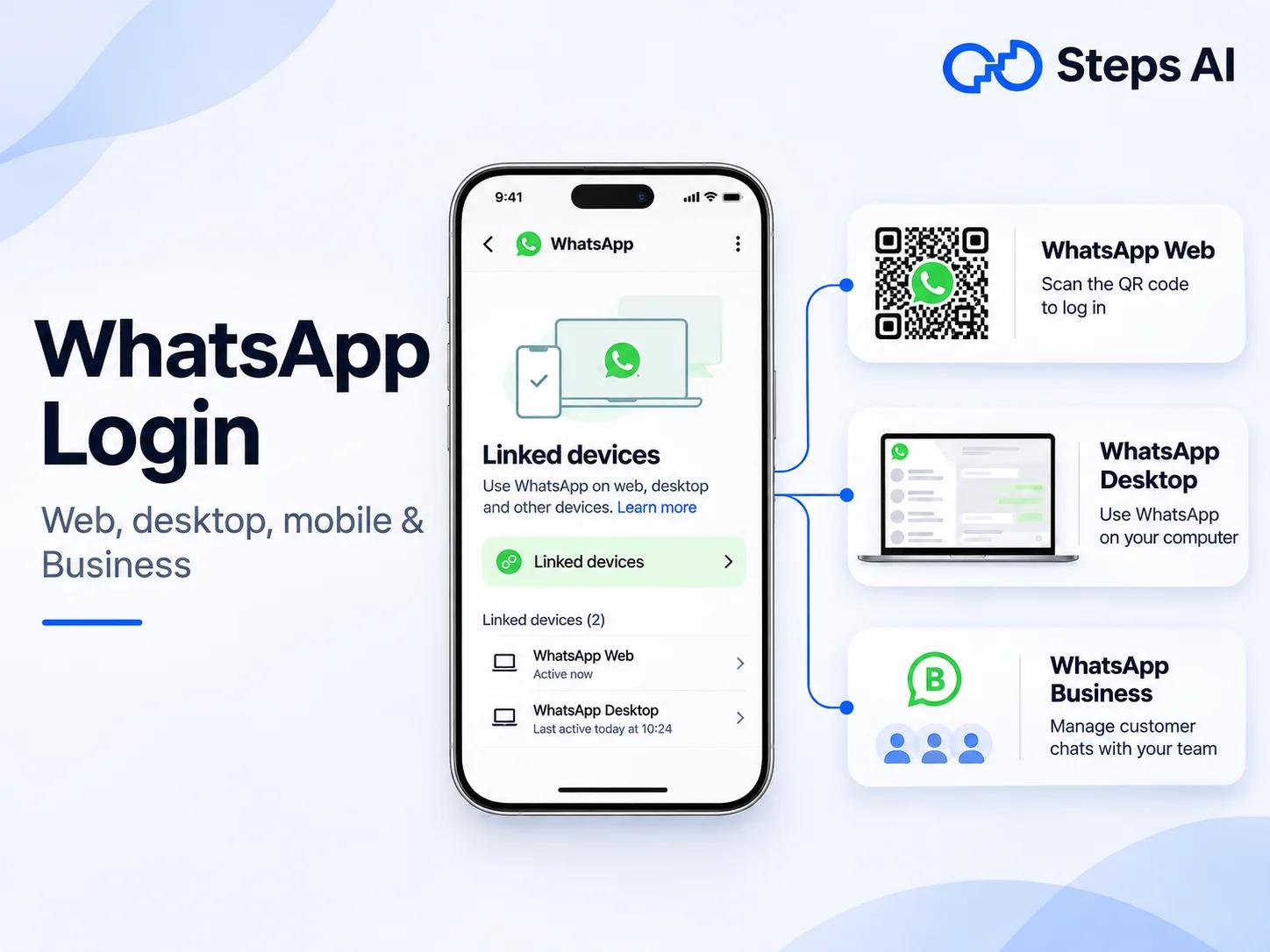
A WhatsApp account is tied to a phone number, and that number is registered on exactly one phone. WhatsApp calls that your primary phone. Every other place you use WhatsApp, including your laptop browser, the desktop app, a tablet, or a second phone, is a linked device borrowing access from that account.
So "logging in" on a computer isn't really logging in. You're proving, once, that you hold the primary phone. After that, the linked device gets its own connection and keeps working on its own.
That's also why your personal messages stay end-to-end encrypted on every linked device, and why a device you linked and forgot about can still be reading your chats today, as long as someone keeps using it.
How to log in to WhatsApp Web
WhatsApp Web runs in Chrome, Edge, Firefox, Safari, Opera and other modern browsers. Nothing to download, nothing to install.
Before you start, make sure both your phone and your computer have a working internet connection, and that WhatsApp on your phone is updated to the latest version.
Log in by scanning the QR code
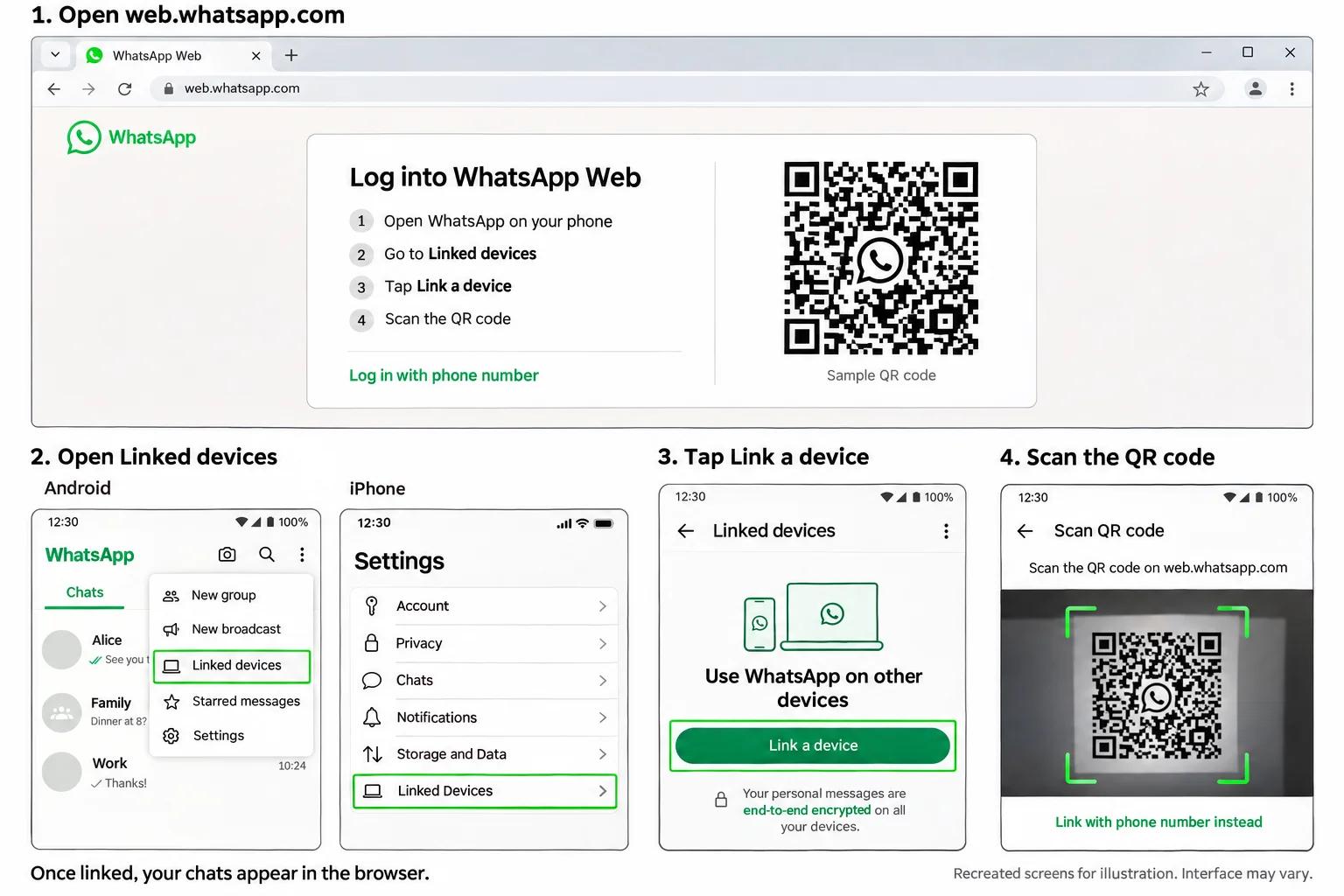
- On your computer, open web.whatsapp.com. A QR code appears on screen.
- Open WhatsApp on your phone.
- On Android, tap the three dots in the top right, then tap Linked devices. On iPhone, go to Settings, then Linked Devices.
- Tap Link a device.
- Unlock your phone if it asks, then point the camera at the QR code on your screen.
- Your chats load in the browser within a few seconds.
The QR code refreshes every so often for security. If it has gone grey or says it has expired, click it or reload the page to get a fresh one.
Log in with your phone number instead of a QR code
This is useful when your phone camera is broken, the lens is scratched, or you're on a desk setup where holding the phone up to the screen is awkward.
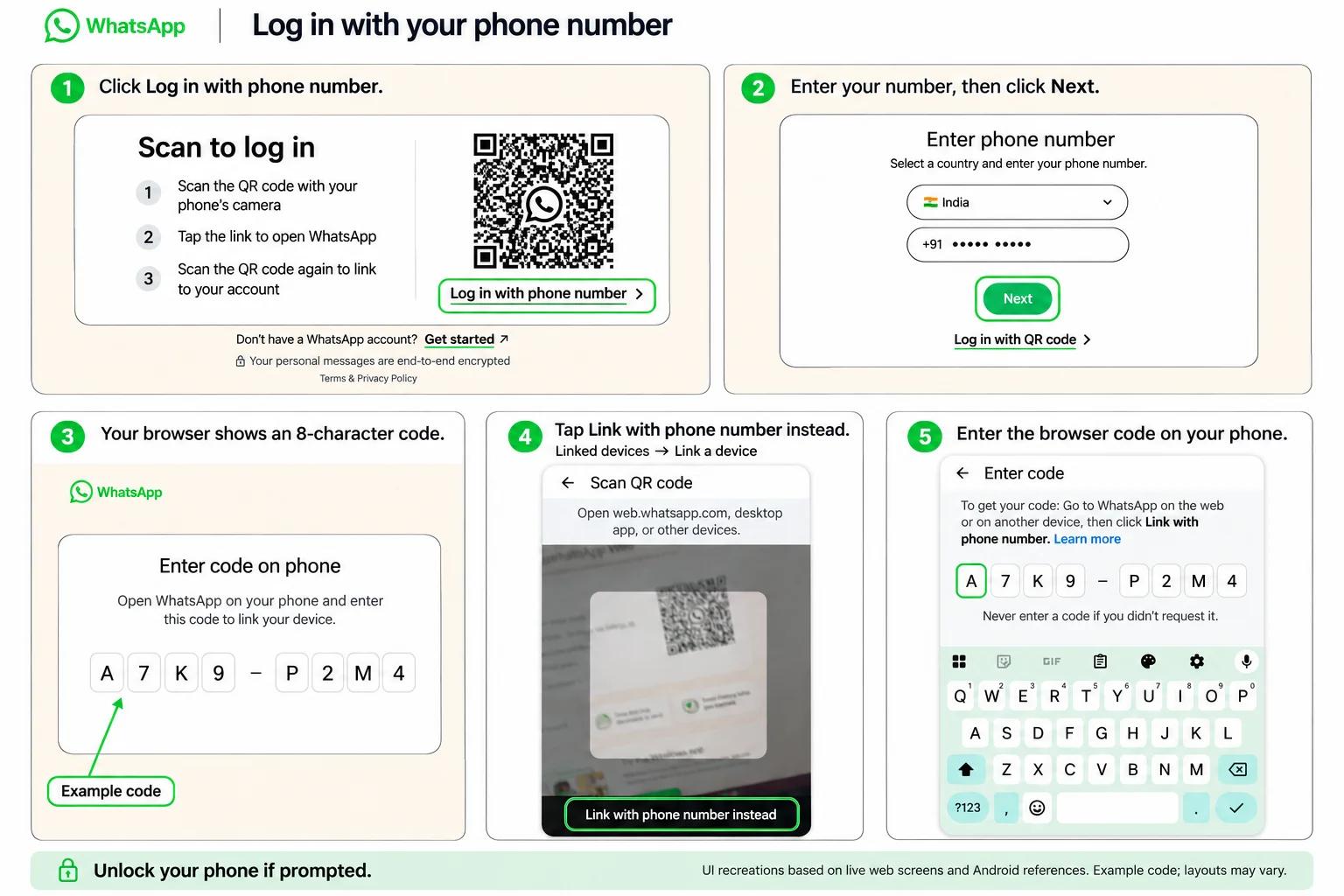
- On web.whatsapp.com, click Log in with phone number (some versions say "Link with phone number").
- Choose your country and enter the number registered to your WhatsApp account.
- Click Next. Your browser shows an eight-character code made of letters and numbers.
- On your phone, go to Linked devices, tap Link a device, then tap Link with phone number instead.
- Type in the code from your browser.
Both methods create exactly the same kind of session. The only difference is how you prove you have the phone.
How to log in to WhatsApp Desktop on Windows and Mac
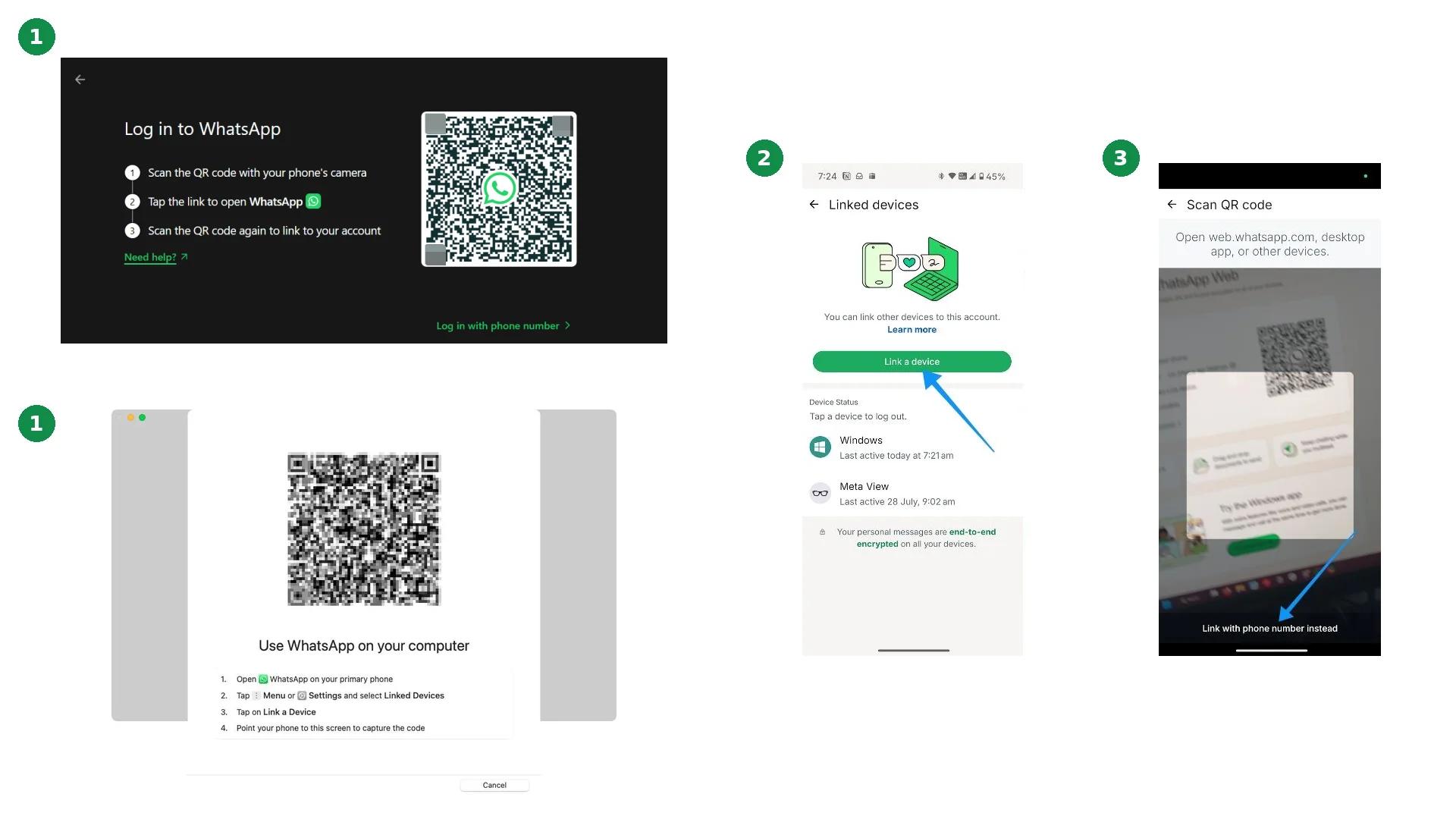
The desktop app behaves the same way as the browser version, with better notifications and no tab to lose.
Download it from the official WhatsApp download page, or from the Microsoft Store and Mac App Store. Open it, and you'll get the same choice: scan the QR code, or link with your phone number.
Use the desktop app if WhatsApp is open all day on your work machine. Use the browser if you're on a borrowed or shared computer, because closing a tab is faster than uninstalling an app, and you leave less behind.
How to log in to WhatsApp on a new phone
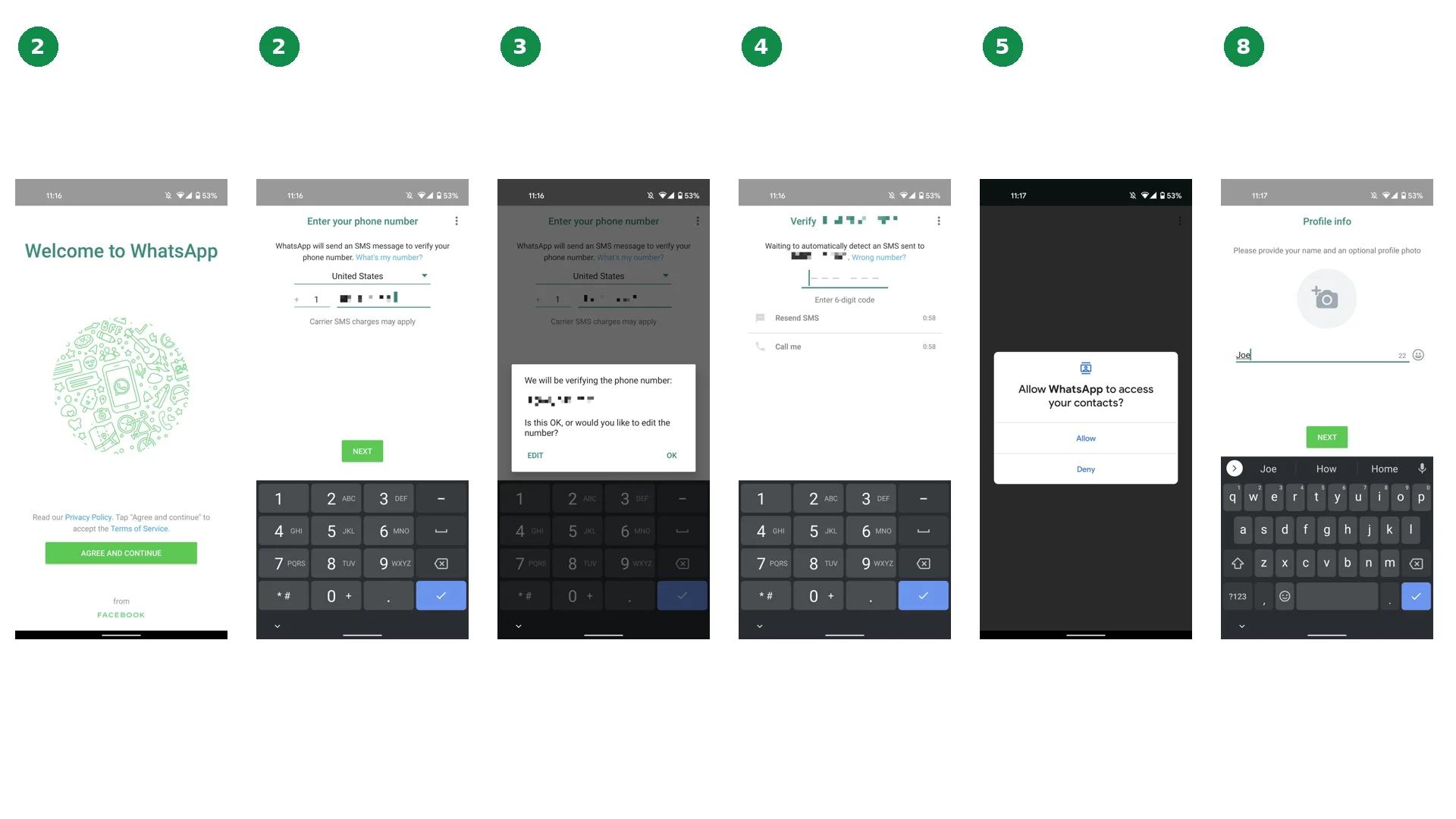
Signing in on a phone is different, because the phone becomes your primary device.
- Install WhatsApp (or WhatsApp Business) from the Google Play Store or Apple App Store.
- Open it, agree to the terms, then select your country code and enter your phone number.
- Tap Yes to confirm the number is correct. A typo here is a common reason the code never arrives.
- WhatsApp sends a six-digit verification code by SMS. Enter it. On Android, it often fills in automatically.
- Allow access to contacts and notifications, so chats and alerts work properly.
- If you have two-step verification turned on, enter your PIN or security password.
- Restore your chat history from Google Drive on Android or iCloud on iPhone, if you have a backup.
- Add your name and a profile photo.
Two things worth knowing:
- Never share that six-digit code with anyone, including someone claiming to be WhatsApp support, because that single code is what hands over an account.
- Registering your number on a new phone automatically signs it out on the old one, since only one primary phone is allowed per number.
The code goes to your number by SMS or call, so make sure the SIM for that number is active and has signal before you start. If it isn’t, you can use an email you’ve already added to your account.
Can you log in to WhatsApp Web on a mobile phone?
Not in any useful way. If you open web.whatsapp.com in Chrome or Safari on a phone, WhatsApp points you to the app instead.
Requesting the desktop site sometimes forces the QR screen to appear, but then you need a second phone to scan it, which defeats the purpose.
What you actually want in these situations:
- Using your account on a second phone: install WhatsApp on it, tap "Agree and Continue", then choose "Link to existing account" and scan the QR code with your primary phone. The second phone becomes a companion device.
- Two numbers on one phone: use the built-in account switching feature on Android, or install WhatsApp Business alongside regular WhatsApp with a different number.
How many devices can stay logged in at once
One primary phone plus four linked devices, so five screens in total. Those four can be any mix of computers, tablets and second phones.
Multi-device support means your phone doesn't need to stay connected for the others to work, but a few timers still apply.
| Rule | What happens |
|---|---|
| Primary phone unused for 14 days | All linked devices are signed out |
| A linked device unused for 30 days | That device is disconnected automatically |
| Same number registered on a new phone | The old primary phone is logged out |
| Meta Verified subscription on WhatsApp Business | Raises the limit from 5 screens to 10 |
A few things still need your phone. You can’t view live location on a companion device, and you can’t create or manage broadcast lists from one.
Can you log in without a QR code, an OTP or a phone?
These come up a lot, and the answers aren’t always the ones people are hoping for. Here’s what you can and can’t do:
- Without a QR code: possible. Use the phone number and eight-character code method above.
- Without an OTP: not when you first register. Setting up WhatsApp on a phone always needs a six-digit code. After that, a passkey can replace the code when you sign back in. Sites and APKs promising OTP-free login are phishing for your account.
- With an email address: partly. You still log in with your phone number, but if you’ve added and verified an email in Settings > Account > Email address, WhatsApp can send your six-digit code there when SMS isn’t coming through. You can’t add one once you’re locked out, so it’s worth setting up now.
- With a Google account: not possible. Google Drive is used for chat backups on Android, nothing more.
- Without a phone at all: you can keep using linked devices while your phone is off or out of battery, but you can't create or re-register an account without a working number.
The closest thing to a shortcut is a passkey. Once you’ve set one up, you can get back into WhatsApp with your fingerprint, Face ID or screen lock instead of waiting around for an SMS code. Since August 2026, you can also add more than one passkey to your account, which helps if you switch between an Android phone and an iPhone. To set one up, go to Settings > Account > Passkeys.
How to stay logged in without being signed out
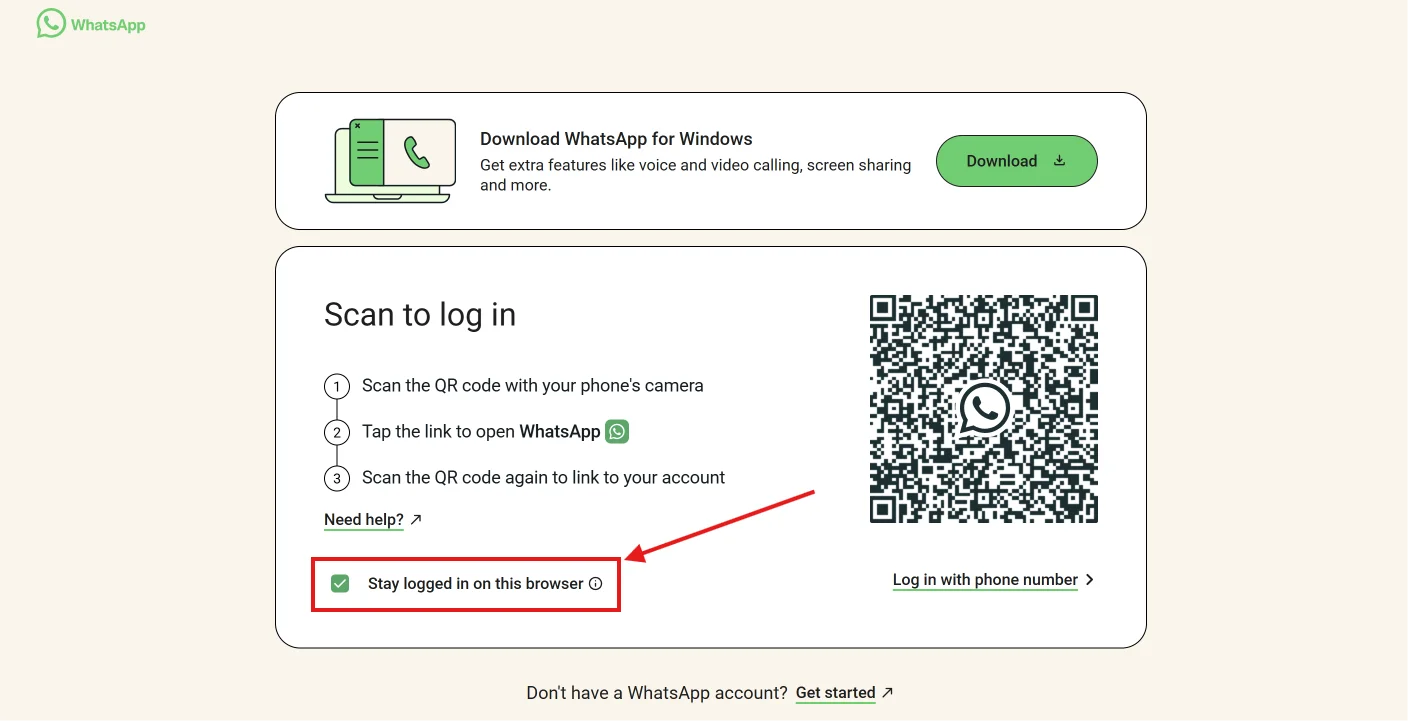
Before you scan the QR code, tick the "Stay logged in on this browser" box. Skip it, and the session ends sooner, which means scanning again tomorrow morning.
To keep a session alive on a computer you use regularly:
- Don't clear cookies for web.whatsapp.com, and check that your browser isn't set to wipe cookies every time it closes.
- Avoid private or incognito windows for WhatsApp Web.
- Open WhatsApp on your primary phone at least once every two weeks.
- Use the same browser each time, since each browser counts as a separate linked device.
There's no truly permanent login. Everything in this list only prevents the sessions from expiring early.
If you use WhatsApp in India, keep this in mind
In late 2025, the Indian government asked messaging apps like WhatsApp to make one big change: your account should only work if the SIM card it’s registered to is inside your phone.
The government also wanted WhatsApp Web to log you out every six hours. That part was dropped in April 2026, so WhatsApp Web works the same as always.
The SIM rule hasn’t gone away, though. Apps have until 31 December 2026 to follow it.
So most people won’t notice anything yet, though WhatsApp has already started asking some users in India to confirm their SIM is in their phone. But if your WhatsApp is registered to an old SIM that’s no longer in your phone, it’s a good idea to sort that out now, before the rule kicks in.
Common WhatsApp login problems and how to fix them
| Problem | Likely cause | Fix |
|---|---|---|
| QR code won't scan | Expired code, dirty camera lens, page zoom | Reload the page, clean the lens, set browser zoom to 100%, hold the phone 15 to 20 cm from the screen |
| QR code won't load at all | Blocked cookies, an extension, a cached page | Clear cookies for web.whatsapp.com, disable extensions, or try a different browser |
| "Computer not connected" or "Phone not connected" | Weak internet on either device | Check both connections and turn off any VPN that may be blocking WhatsApp |
| Chats don't sync or load slowly | A stale link between phone and browser | Unlink the device from Linked devices, then re-link it |
| Login fails after an app update | An outdated version on the phone | Update WhatsApp from the Play Store or App Store |
| You keep getting logged out | 14-day or 30-day inactivity rule, or cookies being cleared on exit | Open WhatsApp on your phone, then re-link and tick "Stay logged in" |
| Six-digit code never arrives | Wrong country code or poor signal | Re-check the number, then request a voice call, or get the code by email if you’ve added one |
If none of this works, it's worth checking whether WhatsApp itself is down before you reinstall anything.
How to log out and keep your login secure
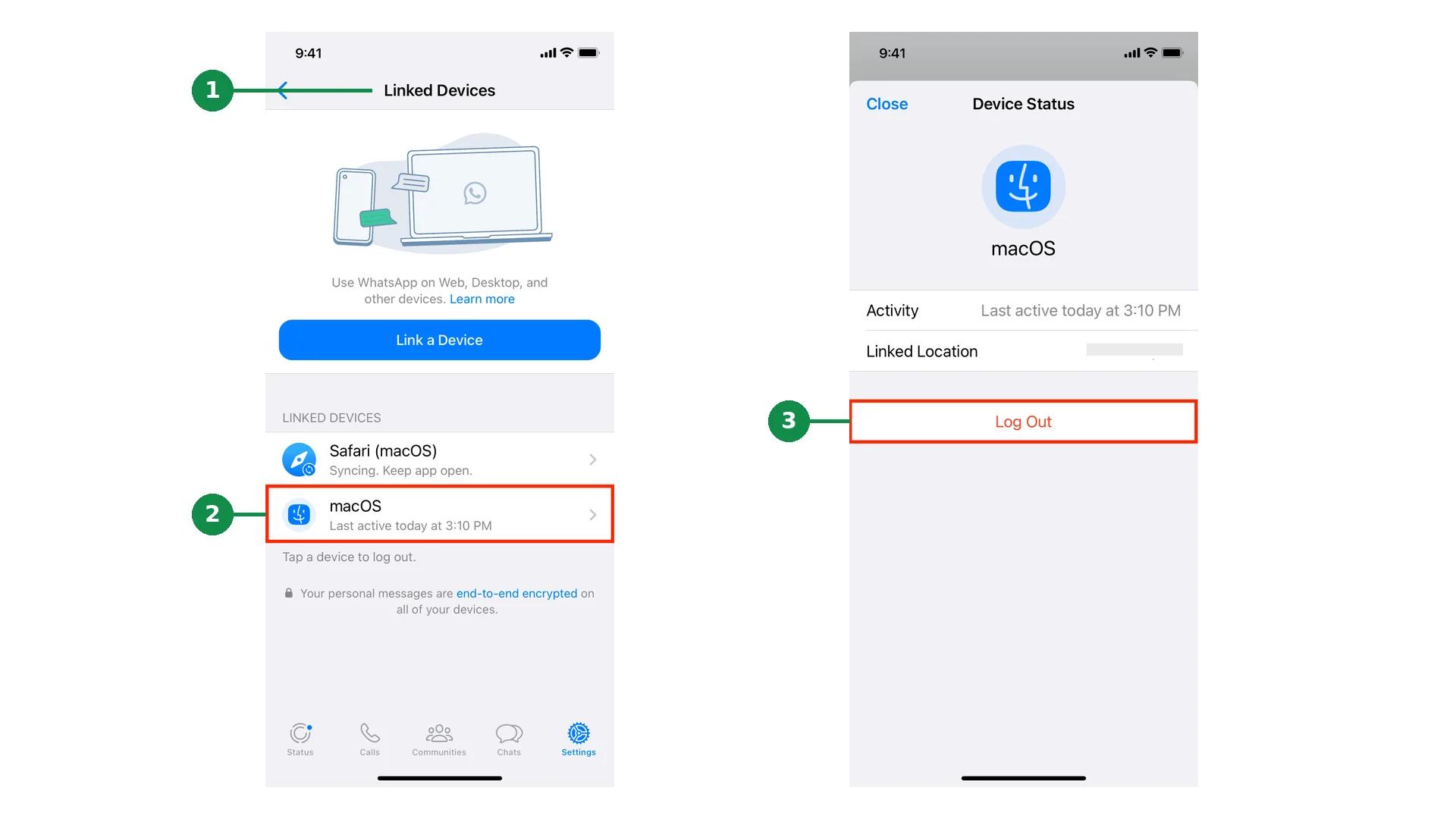
To sign out of a single session from your phone:
- Open Linked devices
- Tap the device
- Tap Log out.
That's a remote logout, and it works even if the computer is in another city. It's the fix if you ever walk away from a shared or public computer without signing out.
You can also click the menu inside WhatsApp Web itself and choose Log out.
Make it a habit to check that list every few months. Linked sessions stay active as long as that device keeps being used and you keep using your phone. A laptop you sold, or an office computer someone else still uses, can keep your chats open for months.
Scammers have also been tricking people into scanning QR codes or entering linking codes that quietly add the attacker’s device to the victim’s account. The scam is called ghost pairing, and India’s CERT-In issued a high-severity advisory about it in December 2025. The attack often starts with a message from a friend’s hacked account, like “Hi, check this photo”, or a panic message about your bank account or KYC, then asks you to “verify” your number on a fake page.
To keep your account safe:
- Never enter a pairing code or scan a linking QR unless you started the process yourself seconds earlier.
- Turn on two-step verification, which stops someone from taking over your number even if they get your SMS code.
- Add a passkey.
WhatsApp Business login: what's different
The WhatsApp Business app is a separate free app with its own icon, built for small businesses. The login steps are identical to standard WhatsApp:
- Install the WhatsApp Business app
- Verify your business number with a six-digit code
- Add your business name, category and profile details.
One rule catches people out. A single phone number can only be registered on one of the two apps. If you want to keep your personal chats and your business chats apart, you need a second number.
Logging in to WhatsApp Business on web and desktop
Exactly the same process as before. For the full walkthrough, including what works on a computer and what still needs your phone, see our WhatsApp Business Web guide.
- Open web.whatsapp.com.
- Go to "Linked devices" inside the WhatsApp Business app on your phone.
- Scan the code, or use the phone number method.
Your catalogue, labels, and quick replies are available on the web and desktop versions too.
Why four devices run out for a support team
The five-device ceiling is fine for an owner with one helper. A paid Meta Verified subscription lifts it to 10 and adds basic chat assignment, which buys a growing team some time. It stops working once you have real volume, for a few reasons:
- Everyone shares one identity, so you can't tell who replied to which customer.
- On the free app, there’s no way to assign a chat, so two people answer the same message while another chat sits untouched. Teams past this point usually need to understand how automated replies and conversation routing work at scale.
- If the owner’s phone goes quiet for 14 days, every team member loses access at once.
- When someone leaves, they can keep reading your customer chats until you log their device out.
Giving your whole team access to one WhatsApp number
When five screens aren't enough, the official next step is the WhatsApp Business API. It works differently from the app. There's nothing to install and no QR code to scan, and every team member logs in with their own account from a web browser.
The API on its own is just a connection, though. You can't open it and start chatting. To actually read and reply to messages, businesses use a platform built on top of it. A good one gives you:
- One inbox for every message, so WhatsApp chats sit next to your website chat, Instagram and Messenger messages.
- An AI agent for common questions, like "How long does delivery take?" or "Can I return this?", so your team isn't typing the same answers all day.
- A smooth handover to a person, with the full conversation attached, so customers never have to repeat themselves.
If you want to see what that looks like in practice, it's how we've built Steps AI. You connect the WhatsApp number you already have (we don't sell numbers), and our WhatsApp AI agent learns from your own products, policies and FAQs. When it can't help, it passes the chat to your team with the full conversation, and your team members pick up from one unified inbox.
If you only get a handful of messages a day and one person handles them all, the free WhatsApp Business app is all you need. A platform like this is worth it once your messages start to outgrow it.
FAQs
Can I log in to WhatsApp online without the app?
You can use WhatsApp in a browser at web.whatsapp.com, but your account still has to be registered on a phone first. There's no web-only account.
Does my phone need to stay on for WhatsApp Web to work?
No. Linked devices connect independently. Your phone only needs to be opened at least once every 14 days.
Why does WhatsApp Web keep asking me to scan again?
Usually because the "Stay logged in on this browser" box wasn't ticked, or your browser clears cookies when it closes.
Can two people use the same WhatsApp number at the same time?
Yes, through linked devices, up to five screens in total, or 10 on WhatsApp Business with Meta Verified. Beyond that, you need the WhatsApp Business API.
How do I see every device logged in to my account?
Open WhatsApp, go to "Linked devices", and review the list. Tap anything you don't recognise and log it out.
Is WhatsApp Web safe on a shared computer?
It's encrypted, but the session stays alive until someone logs out. Always sign out before you leave, and remove the device from your phone afterwards if you're unsure.
Will WhatsApp Web log me out every six hours in India?
No. That requirement was part of India’s original SIM binding directive and was dropped in April 2026. The wider SIM binding rule is still in force, with a December 2026 compliance deadline.