How to Set Up a Customer Service Chatbot for Your Business
Your customer service team is stretched thin. Response times are climbing. The same questions keep flooding in. You've heard that a customer service chatbot could help, but the whole concept feels overwhelming. Will it be complicated to set up? Will it require developers? How do you even know where to start?
Here's the reality: setting up a customer service chatbot used to be a months-long technical project. Not anymore. Modern platforms like Steps AI have simplified the entire process to the point where you can have a fully functional chatbot handling customer inquiries in under an hour, no coding required.
This guide walks through exactly how to set up a customer service chatbot for your business, from initial planning to going live and optimizing performance.
Step 1: Identify Your High-Volume Support Questions
Before touching any technology, you need to understand what your chatbot should handle. The most effective customer service chatbot implementations start with clear use case identification.
What to do:
Pull your support tickets from the last 60-90 days. Look for patterns. What questions appear most frequently? What percentage of your volume could be answered with straightforward information rather than complex investigation?
Common high-volume categories include account management ("How do I reset my password?"), order status ("Where is my order?"), policy questions ("What's your return policy?"), product information ("Does this work with X?"), and basic troubleshooting ("It's not loading").
Why this matters:
Your chatbot should handle the questions that consume the most team time without requiring human judgment. If 50% of your tickets are routine questions with documented answers, that's your starting point. Understanding customer service chatbot use cases across the customer journey helps identify which scenarios to prioritize.
The output: A list of your top 10-15 most common question types, ranked by frequency. This becomes your chatbot's priority training list.
Step 2: Gather Your Knowledge Base Content
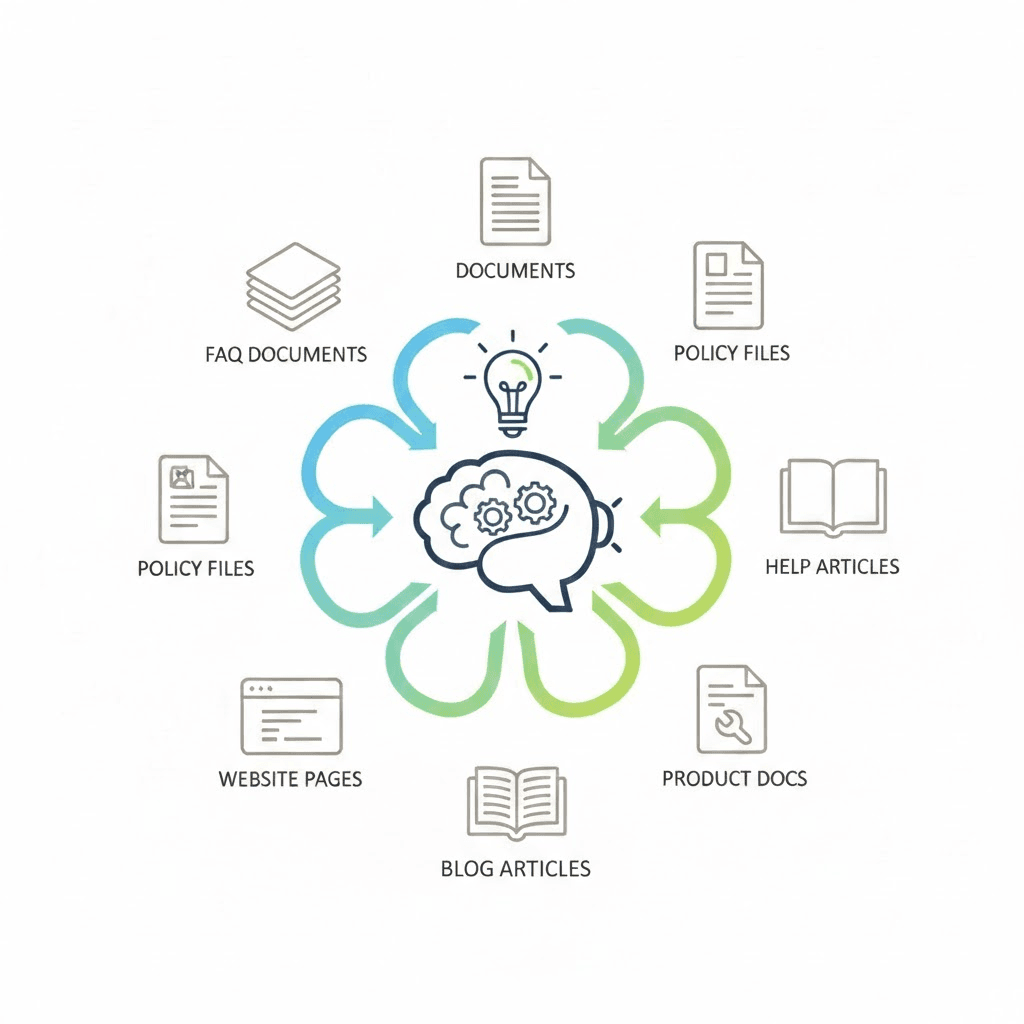
Your customer service chatbot is only as good as the information you give it. Before setup, collect all the documentation your chatbot will need to answer questions effectively.
What to gather:
Product documentation that explains features, specifications, and use cases. All policy documents covering shipping, returns, refunds, privacy, and terms. Common troubleshooting guides and how-to instructions. Pricing and plan information. Integration or compatibility details. Any FAQs you've already created.
You don't need to create new content from scratch. Most businesses already have this information scattered across help articles, email templates, internal wikis, or even just in team members' heads. Collect what exists and document what doesn't.
Why this matters:
A chatbot without comprehensive information becomes frustrating quickly. Customers ask questions, the bot can't answer, and they escalate to humans anyway. Your chatbot should be able to handle at least 80% of your high-volume questions without escalation.
The output: A folder of documents, articles, policies, and guides that cover your most common customer service topics.
Step 3: Choose Your Customer Service Chatbot Platform
Not all chatbot platforms are created equal. Your choice affects everything from ease of setup to ongoing maintenance to actual effectiveness with customers.
What to look for:
Natural language understanding is critical. Your chatbot should handle questions phrased in different ways, not just exact keyword matches. Customers ask "Where's my package?" and "Track my order" and "When will this arrive?" all meaning the same thing.
Easy content upload means you can provide your documentation without manually programming every response. Platforms like Steps AI let you upload documents or paste URLs, and the AI learns from them automatically.
Customization options let you match the chatbot to your brand. Colors, positioning, greeting messages, and behavior should be adjustable without coding.
Integration capabilities matter if you need your chatbot to access order systems, CRM data, or support tools. Check what integrations are available.
Escalation to humans should be seamless. When the chatbot can't help, transferring to your team should preserve conversation context.
Why this matters:
A platform that's hard to set up or maintain won't get used. You need something your non-technical team can manage, update, and optimize without submitting IT tickets every time something needs to change.
The output: A selected platform that matches your technical comfort level and business requirements.
Ready to skip the evaluation and get started? Try Steps AI free and have your customer service chatbot live in minutes.
Step 4: Upload Your Information and Train Your Chatbot
This is where your customer service chatbot actually learns what your business does and how to help customers.
What to do:
With modern AI platforms, training is straightforward. Upload the documents you gathered in Step 2. Add your website URL so the chatbot can learn from your existing content. Paste in policy information, product details, and FAQ content.
The AI processes this information and builds its understanding of how to answer customer questions. You're not programming individual responses or building decision trees. You're providing knowledge, and the AI figures out how to use it conversationally.
Test thoroughly before going live. Have conversations with your chatbot. Ask the questions your customers typically ask. See how it responds. Look for gaps in knowledge or areas where responses could be clearer. Add more information or refine existing content as needed.
Why this matters:
The quality of your chatbot's responses depends entirely on the information you provide. Skimping on this step results in a chatbot that can't help customers, which defeats the entire purpose.
The output: A trained chatbot that can handle your most common customer service questions accurately and naturally.
Step 5: Customize Appearance and Behavior
Your customer service chatbot should feel like a natural part of your brand and website, not a generic widget.
What to customize:
Visual design includes choosing colors that match your brand, selecting the chat bubble position, and customizing the bot avatar or icon. Most platforms offer preview modes so you can see changes before publishing.
Greeting message is your first impression. Make it helpful and specific. "Hi! I can help with questions about orders, returns, or product features" is better than "Hello! How can I help?"
Proactive triggers determine when the chatbot appears. Immediately when someone lands? After 15 seconds of browsing? When someone views specific pages? On exit intent? Test different approaches to see what your customers respond to best.
Escalation messaging sets expectations for when humans get involved. "This needs investigation. I'm connecting you with our team" is clear and reassuring.
Why this matters:
A chatbot that clashes with your brand or appears at annoying times creates friction. Good customization makes the chatbot feel integrated and helpful rather than intrusive.
The output: A branded chatbot that looks and behaves consistently with your overall customer experience.
Step 6: Install on Your Website
Despite what you might think, installing your customer service chatbot doesn't require technical expertise.
What to do:
Most platforms provide a small code snippet. You copy this snippet and paste it into your website. The exact location varies by platform (WordPress, Shopify, Wix, Squarespace, custom site), but the principle is the same.
For WordPress, paste into your theme footer or use a plugin. For Shopify, add to your theme code. For Wix or Squarespace, use code injection tools. For custom websites, add to your site footer before the closing body tag.
Many platforms, including Steps AI, provide step-by-step instructions specific to your website type. If you can copy-paste, you can install a chatbot.
Why this matters:
The installation step intimidates people unnecessarily. Modern chatbots are designed for non-technical users. If installation feels complicated, you're using the wrong platform.
The output: A live chatbot on your website, visible to visitors.
Step 7: Monitor, Learn, and Optimize
Setup isn't the end. The most effective customer service chatbot implementations improve continuously based on real performance data.
What to monitor:
Conversation volume shows how many customers are engaging with your chatbot. Resolution rate indicates how many conversations the chatbot handles completely versus escalating to humans. Common questions reveal what topics your customers care about most. Escalation patterns show where the chatbot struggles and needs better information.
Review actual conversation transcripts regularly. Read through real exchanges between your chatbot and customers. This shows you exactly where responses are clear and helpful versus where they're confusing or incomplete.
What to optimize:
Add information for questions the chatbot can't answer. If customers repeatedly ask about a topic that triggers escalation, add that content to your knowledge base. Refine responses that lead to follow-up confusion. Update information when policies, products, or procedures change.
See customer support chatbot examples in real scenarios to understand what good performance looks like and how to optimize for your specific use cases.
Why this matters:
A static chatbot becomes outdated and less effective over time. Your business changes, customer questions evolve, and new issues emerge. Regular optimization keeps your chatbot relevant and useful.
The output: An increasingly effective chatbot that handles more questions and provides better responses over time.
Common Setup Mistakes to Avoid
Launching with incomplete information. If your chatbot only knows basic details, it won't be helpful. Take time to provide comprehensive content before going live.
No clear escalation path. Customers should always be able to reach humans easily. Don't hide this option or make it difficult to find.
Ignoring mobile. More than half of web traffic is mobile. Test your chatbot on phones and tablets, not just desktop.
Setting and forgetting. Your chatbot needs regular updates and maintenance. Schedule monthly reviews to keep it current and effective.
Being too aggressive. A chatbot that pops up immediately and blocks content annoys visitors. Give people time to browse before offering help.
The Bottom Line
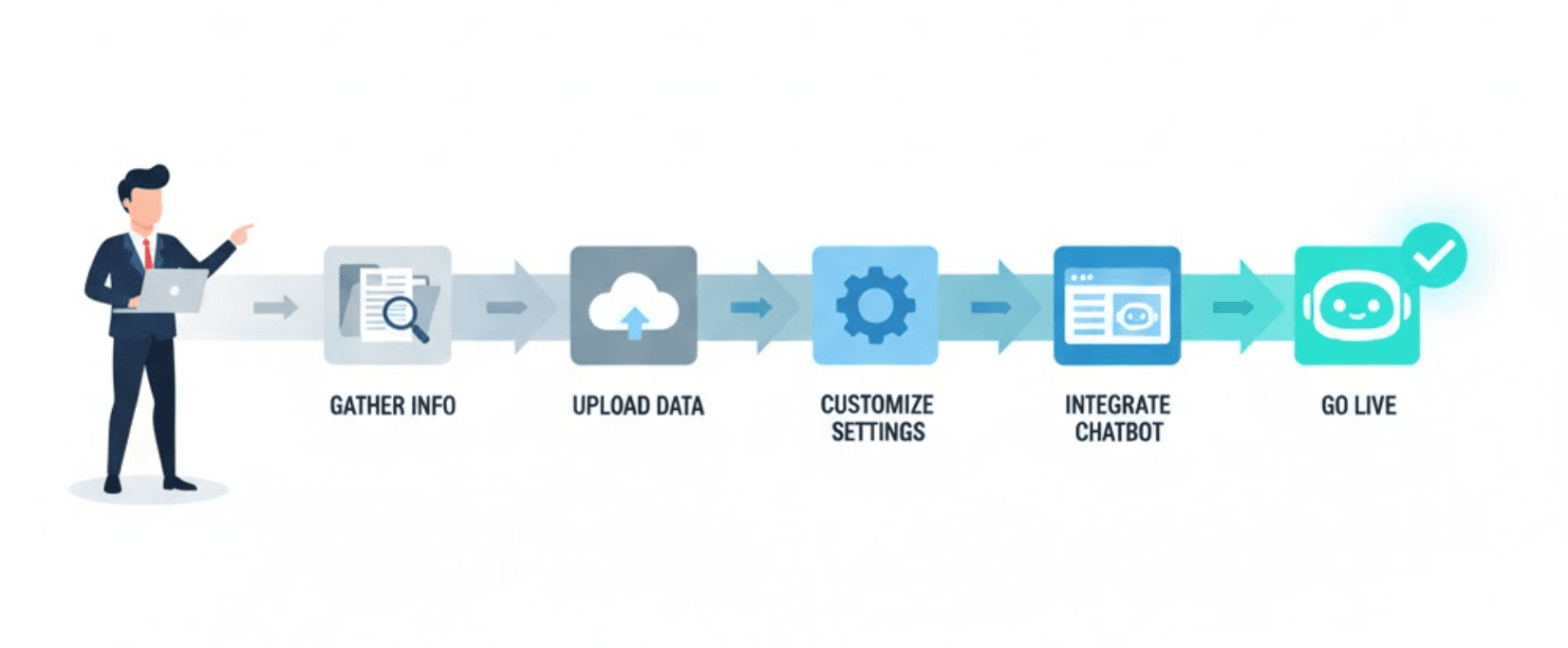
Setting up a customer service chatbot is no longer a complex technical challenge. With modern AI platforms, the process takes hours, not months. The key steps are straightforward: identify your high-volume questions, gather your knowledge base, choose a user-friendly platform, upload your information, customize the experience, install the code, and optimize based on performance.
The businesses that succeed with chatbots are those that treat setup as the beginning, not the end. They start with clear use cases, provide comprehensive information, and continuously improve based on real customer interactions.
If your customer service team is overwhelmed with repetitive questions, if customers need help outside business hours, or if response times are climbing, the time to set up a customer service chatbot is now. The technology is ready. The question is whether you are.
Frequently Asked Questions (FAQs)
How long does it take to set up a customer service chatbot?
With modern platforms like Steps AI, the technical setup takes 15-30 minutes. The time-consuming part is gathering your knowledge base content, which can take a few hours depending on how organized your existing documentation is.
Do I need developers or technical skills?
No. Modern customer service chatbot platforms are designed for non-technical users. If you can upload documents and copy-paste a code snippet, you can set up a chatbot.
What if my business doesn't have documentation?
Start documenting as you go. Review your recent support tickets and create answers to your most common questions. You don't need perfect documentation to launch. Start with basics and expand over time.
How much does a customer service chatbot cost?
Costs vary widely. Simple platforms start around $20-50/month. More comprehensive solutions range from $100-500/month depending on conversation volume and features. Most offer free trials so you can test before committing.
Can I update the chatbot after it's set up?
Absolutely. In fact, you should. Modern platforms make it easy to add information, update responses, and refine behavior without technical work. Regular updates keep your chatbot effective as your business evolves.